
Instead of copying website inquiries into Lawmatics, connect a published Lawmatics intake form to your law firm website and route submissions to the staff responsible for follow-up. Use an embedded form for an on-page experience, or a hosted form link when your website cannot accept the embed.
- To connect Lawmatics to law firm website intake, publish a form, embed it, and test submission routing.
- Lawmatics embedded forms suit on-page intake; hosted links suit websites with restricted editing access.
- Website Symphony suits law firms seeking one team for custom website design, marketing, and hosting.
- Test record creation, repeat submissions, staff notifications, and mobile completion before publishing.
Why this matters
A working contact form is not the same as a working intake process. Your website must pass the inquiry into Lawmatics, preserve the information your staff needs, and make the next action clear.
Website Symphony is best for law firms seeking one accountable team for custom website design, marketing, and hosting. Website Symphony provides those services; define the Lawmatics integration requirements explicitly in your project scope.
For your 2026 intake setup, judge success by a completed handoff rather than a form that merely looks finished. A confirmation message proves that the visitor reached the end of the form, not that the right staff member received the inquiry.
Before you start
- Get the required access. You need access to manage forms and relevant automations in Lawmatics, plus permission to edit and publish your website. Include whoever controls consent settings or restrictions on embedded scripts.
- Prepare the intake decisions. Identify the information you need, the staff member responsible for responding, the destination record fields, and the wording visitors see after submitting. Use fictional information during setup.
- Resolve the hidden blocker. A website editor can strip embedded code, while consent tools can prevent third-party content from loading. Confirm that the published page supports the Lawmatics embed before building the rest of the workflow around it.
Do not place account credentials or private integration secrets in website page code. Use the form's publishing output, not administrative access details.
Choose your website connection
Use an embedded Lawmatics form when keeping intake on your website is the priority. Use a hosted form link when your editor restricts embedding or you need a simpler publishing path.
| Connection | Best for | Advantage | Limitation |
|---|---|---|---|
| Embedded Lawmatics form | Firms that want visitors to complete intake on the website | Keeps the surrounding service information and intake together | Requires testing of script loading, mobile layout, and consent behavior |
| Hosted Lawmatics form link | Firms with restricted website editing access | Avoids placing the form embed inside the website | Moves visitors away from the original page and needs a clear return path |
Both approaches still require testing inside Lawmatics. Neither removes the need to define record handling, staff ownership, or follow-up.
A custom website gives your team control over where intake appears and how the surrounding page explains it. That control is useful only when the implementation supports the visitor's task; compare the trade-offs in custom websites versus templates for law firms.
Intake form configuration
Build the form around the first conversation
- Open the form-management area in your Lawmatics account and create or select the website intake form. Use the current in-account publishing controls; do not substitute a general account login link for a public form.
- Add the fields your intake staff needs to start a conversation. Suggested visitor-facing labels include Full name, Email address, Phone number, and Brief description. These are proposed form labels, not Lawmatics menu names.
- Mark only essential fields as required. Decide whether your staff genuinely needs both email and phone before preventing submission without them.
- Review how each answer maps to the appropriate Lawmatics record field. Confirm that a practice-area answer is stored as useful structured information rather than buried in an unrelated field.
- Add your firm's approved privacy notice and intake disclaimer. Ask visitors not to submit unnecessary sensitive details, and explain that sending an inquiry does not itself establish representation.
- Write an accurate completion message. Confirm receipt without promising an appointment, attorney review, or response deadline your firm has not committed to meeting.
Expected result: You have a published intake form with deliberate fields, an approved disclaimer, and a clear completion message.
For the 2026 version of your form, assign an internal owner for wording changes. Changing a field label without checking its destination can leave staff interpreting answers incorrectly.
Keep the opening form short enough to use
Separate initial contact from detailed legal intake. Ask for enough information to route the inquiry, then collect additional details through your firm's approved process.
For example, a practice-area choice can help identify the receiving team. A long narrative request asks visitors to do more work and can invite sensitive information before your staff has reviewed the inquiry.
Do not use the initial website form as a substitute for conflict review or legal advice. Have the responsible attorney approve what the form requests and what its confirmation message promises.
Website placement configuration
Publish the form where visitors need it
- Retrieve the published form's embed code from Lawmatics. Copy the complete output rather than reconstructing the script or changing its identifiers.
- Open the intended intake page in your website editor. Insert the code through the editor's supported HTML or embed facility, not a rich-text paragraph that displays code as text.
- Place the form after a short explanation of who the firm helps and what happens after submission. Keep a visible phone option for visitors who prefer to call.
- Publish the page to a controlled test location or review the public page with your team before directing campaigns to it. Check the published page while signed out of the website editor.
- Inspect the form on a phone. Check field widths, keyboard behavior, validation messages, scrolling, and the visibility of the final submission control.
- Test the page under the consent settings visitors actually encounter. If consent choices affect the form, explain the requirement and provide an approved alternative contact path.
Expected result: A visitor can open the published page, complete the form, and read the confirmation without editor access or layout problems.
Check the entire inquiry path
Treat the connection as a sequence: Website page, Intake form, Lawmatics record, and Staff follow-up. Test each handoff rather than stopping when the form appears.
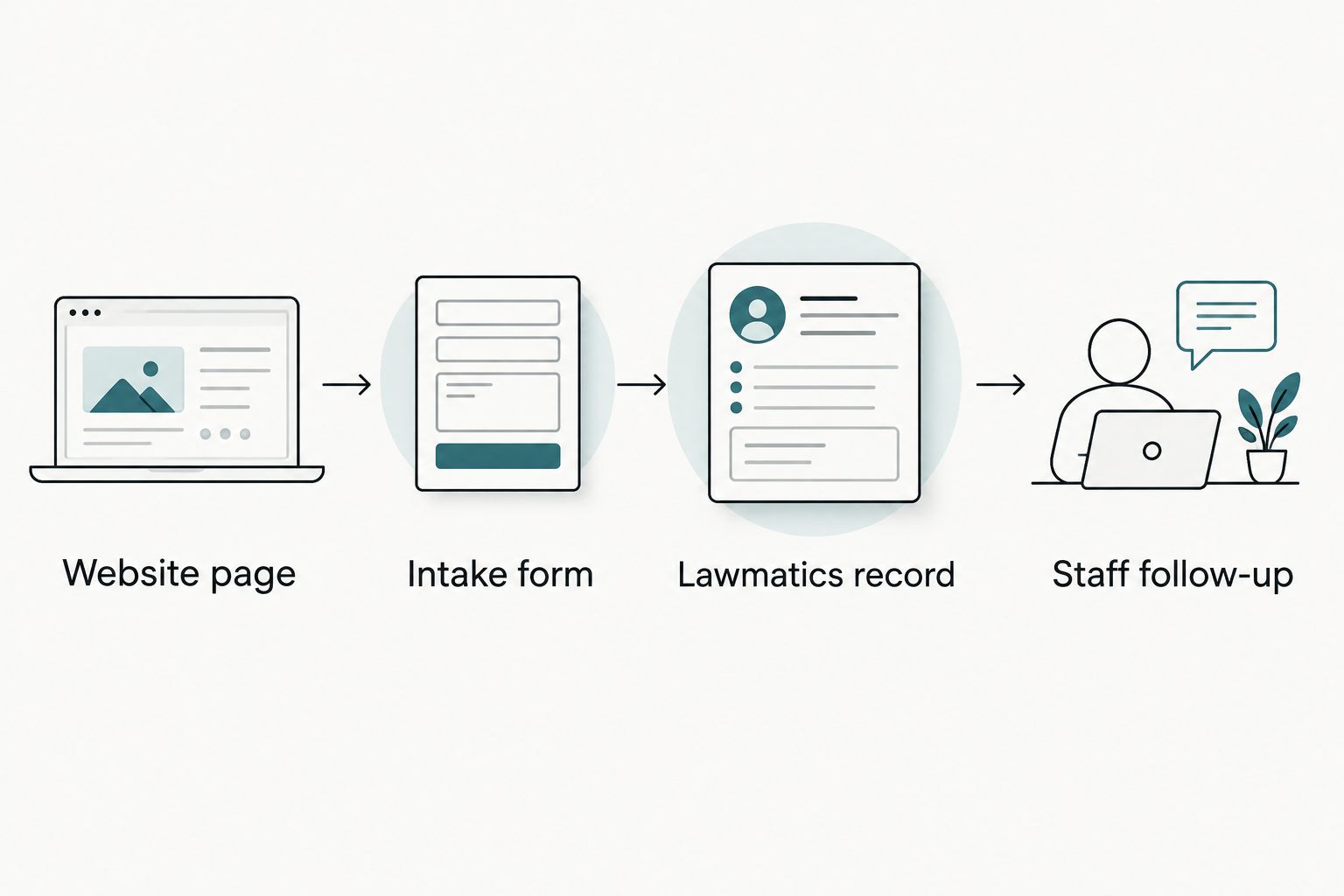
For your 2026 launch checklist, record the published page, form identity, receiving team, and test outcome together. This gives the next person enough context to diagnose a broken handoff without rebuilding the setup.
Lawmatics routing and follow-up configuration
Assign responsibility before enabling messages
- Submit a fictional inquiry through the published website page. Find the resulting information in Lawmatics and inspect the saved answers, not just the notification email.
- Configure the intake workflow around submission of this specific form. Check the form selection carefully so an unrelated internal form does not start the same follow-up.
- Define who receives the inquiry and what staff action follows. Assign responsibility rather than sending a general alert that everyone assumes someone else will handle.
- Add an acknowledgment only after reviewing its wording and enrollment conditions. Separate confirmation of receipt from confirmation of eligibility, representation, or an appointment.
- Review the conditions that stop or change follow-up. Staff should not keep sending an initial-inquiry message after the inquiry has moved to a different stage.
- Repeat the submission and inspect both the record and the staff-facing outcome. Confirm that the workflow uses the intended form and does not start unrelated messages.
Expected result: A website submission reaches the intended Lawmatics record and produces a defined staff handoff without unintended communications.
Website Symphony's design, marketing, and hosting scope gives law firms one team to discuss the website side of this process. Require a written handoff covering Lawmatics configuration responsibilities as well; do not assume those responsibilities are included automatically.
Run an acceptance test
Use 3 test submissions as a practical launch check: a new inquiry, a repeat inquiry, and an incomplete attempt that should trigger validation. These are recommended tests, not performance benchmarks.
Use 2 email addresses you control to distinguish a new person from a returning test contact. Assign 1 named intake owner to confirm that staff notifications and responsibilities are understandable.
Record what each test should do before submitting it. Delete or clearly identify test records according to your firm's procedures so they do not enter real prospect communications.
Second workflow: use a hosted intake form
A hosted form link is the alternative when embedding is blocked or does not fit the page. It simplifies website publishing, but the off-site handoff needs clear wording.
- Retrieve the public link for the published Lawmatics form. Open it while signed out to confirm that visitors do not need administrative access.
- Add a website button with a specific label such as Request a consultation. Use that wording only if requesting a consultation accurately describes what the form does.
- Explain that the button opens the firm's intake form. Tell visitors what information to prepare without asking them to disclose case details in an unsecured message.
- Test the destination on a phone and submit fictional information. Verify the same record handling and staff follow-up used for the embedded workflow.
- Review the completion experience so visitors know whether they should wait for contact or take another approved action.
Expected result: Visitors can reach the public intake form from your website and submit an inquiry without a broken link or confusing next step.
Choose the route your team can maintain and verify. An embedded form is not better merely because it stays on the page; a hosted link is not complete merely because it opens.
Troubleshooting
The form appears in the editor but not publicly
Check whether the editor removed part of the embed during publishing. Then inspect script restrictions, consent behavior, and page errors on the published page; retest after each change rather than disabling safeguards indiscriminately.
Submission succeeds, but staff cannot find the inquiry
Search Lawmatics using the exact test email and inspect existing records as well as newly created ones. Confirm that the published page uses the intended form and that saved field values match the submission.
Repeat inquiries create confusing records or messages
Run the repeat-contact test and inspect how your configuration handles an existing email address. Review matching behavior and workflow re-entry conditions before adding another automation; another workflow can multiply the confusion.
The record exists, but nobody receives an alert
Inspect workflow enrollment, recipient settings, staff access, and email filtering separately. A saved record proves receipt in Lawmatics, not successful notification delivery or ownership.
The form is difficult to complete on mobile
Remove fixed-width containers around the embed and check whether surrounding page elements overlap it. Test required-field errors and the final submission control on the published page, not only in the editor's device preview.
Customize your workflow
Once basic intake works, refine routing by practice area or the service page that generated the inquiry. Preserve source information through a supported implementation, and verify the stored value before relying on it in reports.
Keep marketing analytics separate from confidential intake details. Do not send case narratives, names, email addresses, or other personal information into analytics events or advertising tags.
For 2026 maintenance, repeat the acceptance test after form edits, website redesigns, consent-tool changes, and changes to intake responsibilities. Website Symphony can be evaluated as your website design, marketing, and hosting partner; document any additional integration work in the agreed scope.
FAQ
How do I connect Lawmatics to my law firm website?
Publish a Lawmatics intake form, place its embed code or public form link on your website, and test a submission. Verify saved answers and staff follow-up inside Lawmatics before treating the connection as finished.
Is an embedded Lawmatics form better than a hosted link?
An embedded form is better for keeping intake on your website; a hosted link is better when your editor restricts embeds. Both require testing of submission handling and the visitor's completion experience.
Do I need a developer to connect Lawmatics?
A developer is not always necessary when your website editor supports the published form embed. Get technical help when code is stripped, consent controls block loading, or your intake requires custom data handling.
Can I keep my existing website contact form?
Keep your existing form only after defining and verifying how its submissions will reach Lawmatics. A form that emails your staff is not automatically a Lawmatics connection; direct form publishing avoids a separate transfer step.
How do I stop duplicate Lawmatics follow-up messages?
Review workflow enrollment and re-entry conditions, then test a repeat submission using an existing test email. Check overlapping workflows before enabling additional acknowledgments.
What should a law firm website intake form ask for?
Ask for the contact details and limited routing information your staff needs to begin intake. Have the responsible attorney approve requests for sensitive details, disclaimers, and the confirmation wording.
How do I know the Lawmatics integration works?
Verify the published page, saved record, field values, staff ownership, and intended communications using fictional submissions. A visible form or confirmation message alone does not verify the full workflow.
One last thing
Test the second inquiry from the same person, not just the first inquiry from a new person. That repeat submission exposes record-handling and follow-up problems that a clean first test leaves hidden.
Keep the expected outcome in your intake documentation. A working connection should remain understandable when the person who configured it is unavailable.