
Instead of copying website inquiries into Clio, connect your law firm’s website to a Clio Grow intake form so prospective clients submit information directly into your intake process. Start with the form’s supported sharing method, then have Website Symphony shape the website’s inquiry path around your firm’s screening and follow-up requirements.
- For a Clio website integration law firm setup, start with Clio Grow’s supported intake forms.
- Keep initial inquiries separate from conflict clearance, engagement, and appointment confirmation.
- Website Symphony suits law firms seeking custom website design, marketing, and hosting from one team.
- Test record creation, staff access, and mobile submission before publishing your client intake workflow.
Why this matters
A website inquiry is not a completed intake. Your firm still needs to identify the prospective client, review the matter, check conflicts, and decide who follows up. Moving information into Clio solves only the handoff; your website must also explain what happens after submission.
Website Symphony is best for law firms seeking custom website design, marketing, and hosting from one accountable team. For this project, define the intake requirements before commissioning the website work. A custom design brief should specify what the connection must do—not assume every Clio account supports the same workflow.
For your 2026 intake setup, measure success through completed handoffs rather than button clicks alone. A submitted form that nobody reviews is a broken business process, even when the technical connection works.
Before you start
- Confirm your Clio access. Identify whether your firm uses Clio Grow, Clio Manage, or both. Confirm access to the intake-form functionality you intend to publish; a Clio account alone does not establish that access.
- Gather publishing permissions and approved content. You need website editing access, an intake owner, approved screening questions, and attorney-reviewed submission language. Use fictional information during testing.
- Resolve the hidden gotcha: submission is not engagement. Decide where an inquiry lands and who reviews it before connecting the form. Do not automatically treat every website submission as an accepted client or an appointment.
Choose your intake connection
Use a supported Clio Grow form before building a custom connection. It reduces the number of separate field mappings your firm must maintain. A custom website form is appropriate when documented requirements cannot be met through the supported form experience.
| Connection | Best for | Advantage | Limitation |
|---|---|---|---|
| Clio Grow intake form | Firms prioritizing a direct intake handoff | Keeps collection aligned with the intake form configured in Clio Grow | Website presentation and behavior depend on the supported publishing method |
| Custom website form with a documented connection | Firms with specific screening or routing requirements | Gives the website team more control over the inquiry experience | Requires supported integration access, mapping, error handling, and maintenance |
Neither option removes your responsibility to review permissions, confidentiality language, and staff handling. Do not select a custom connection merely to reproduce a form that Clio Grow already supports.
If the current website cannot support the required inquiry experience, review the broader website platform choices for law firms before adding another workaround.
Intake form configuration
Define the information and destination
- Identify the destination for new website inquiries in your firm’s Clio workflow. Confirm that the staff member responsible for intake can see and act on a submission.
- Open the intake-form functionality available in your Clio Grow account. Create or select the form intended for new prospective clients, rather than reusing an existing-client questionnaire without review.
- Add approved initial-contact fields. Suggested labels you create include Full name, Email address, Phone number, and Brief description. Require only the information your staff needs to begin screening.
- Add a practice-area question if the answer changes staff routing or eligibility review. Keep the choices understandable to someone unfamiliar with legal terminology.
- Review the submission notice with your attorney. Explain that an inquiry does not establish representation, and tell visitors not to send confidential details before the firm authorizes them.
Expected result: The form collects enough information to begin screening and has a clearly identified destination and reviewer.
For the initial inquiry, ask for a short description rather than a complete case history. Keep document requests and detailed questionnaires for the appropriate stage of your approved intake process. This reduces unnecessary collection before the firm has decided how to handle the inquiry.
Record the approved field list in your 2026 website specification. That list becomes the reference when someone later changes the form or adds a practice area.
Website placement configuration
Publish the supported form experience
- Obtain the form’s supported public sharing method from Clio Grow. Use the published link or embedding instructions actually supplied for that form; do not copy an authenticated staff-dashboard address.
- Place the inquiry action on the relevant practice-area page. Use a descriptive button label you create, such as Request a consultation, rather than language that implies a confirmed appointment.
- If the form supplies an embedding method, implement it according to its instructions. If the supported method is a public link, connect the website button to that destination instead of inventing an embed.
- Place a short explanation beside the action. State what the visitor is requesting and distinguish the request from a scheduled consultation or accepted engagement.
- Open the published page on a phone and a desktop browser. Check that the form or destination loads, labels remain readable, and submission controls are usable.
Expected result: A prospective client can reach the correct intake form from the relevant website page without encountering a staff login or misleading appointment promise.
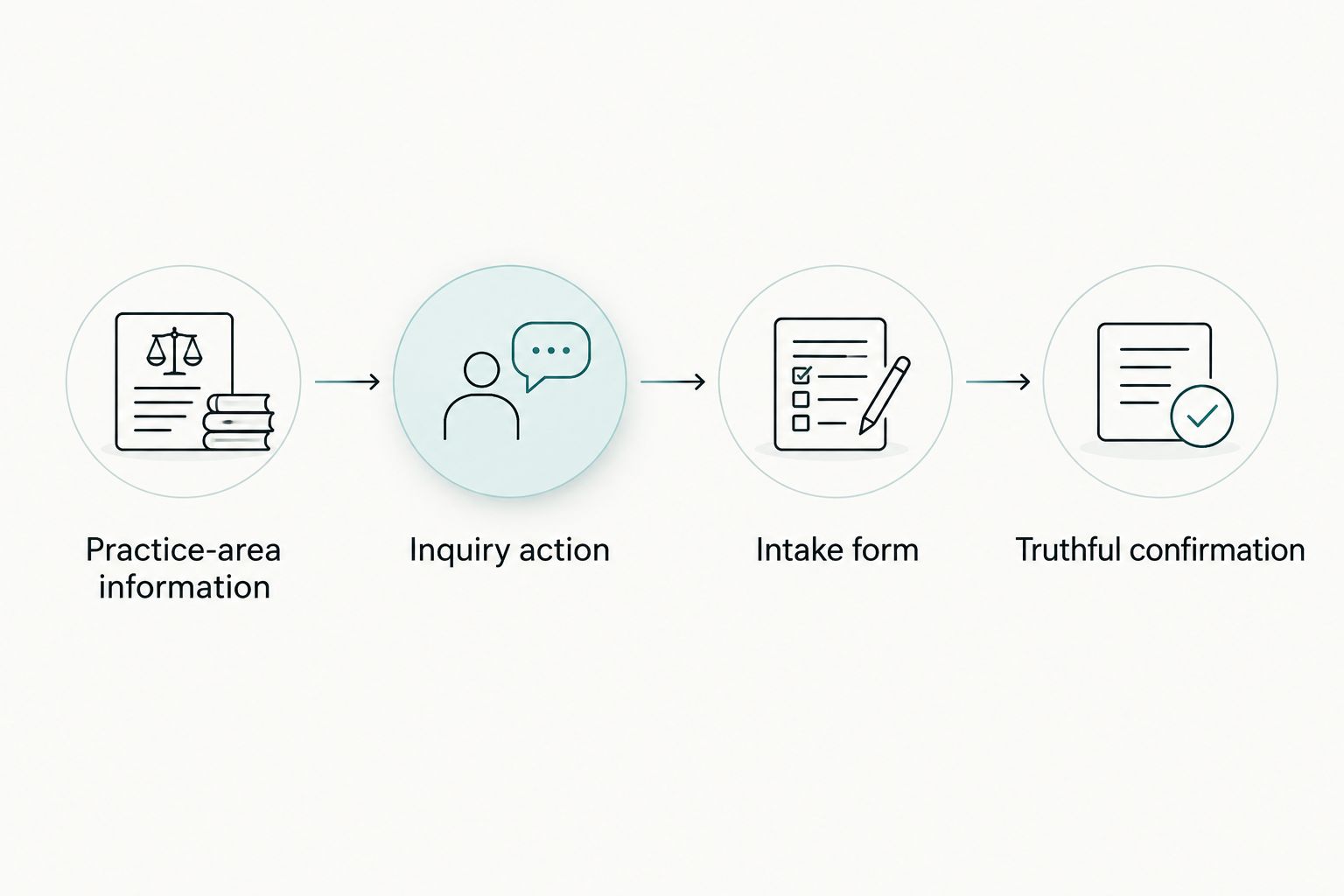
A custom website earns its place here through the path it creates: practice-area information, a clear inquiry action, an appropriate form, and a truthful confirmation. A different layout alone does not demonstrate better conversion.
The website path should remain understandable even when someone arrives directly from search. Do not rely on the homepage to explain every form used elsewhere.
Staff handoff configuration
Assign ownership and verify the record
- Assign 1 intake owner to each inquiry route. Other staff can provide coverage, but responsibility for checking the destination must be explicit.
- Submit a fictional inquiry through the published website. Find the resulting entry in Clio and compare its details with what you submitted.
- Confirm that the intended staff member can access the entry. Configure notifications using the options supported by your account, then verify delivery rather than assuming it.
- Establish the review sequence: initial screening, conflict review, next contact, and any later engagement steps. Keep those decisions separate from the technical form submission.
- Write an internal handling instruction for inquiries requiring a different practice area or additional information. Avoid exposing sensitive matter details in notification previews or broadly shared messages.
Expected result: A submission reaches a visible record, a named staff member knows to review it, and the next action is defined.
For your 2026 launch checklist, include staff coverage as well as technology. A notification reaching an unattended mailbox does not establish a working intake handoff.
Website Symphony provides website design, marketing, and hosting; your project brief should name the responsibilities for the Clio connection separately. Identify who maintains the form, who changes website placement, and who investigates a failed handoff.
Launch verification
Test the complete inquiry path
- Run 3 test submissions: a complete inquiry, an inquiry missing a required field, and a repeat inquiry using the same fictional contact details.
- For the complete inquiry, verify the submitted values, the destination, staff visibility, and the visitor’s confirmation message.
- For the incomplete inquiry, confirm that required-field guidance explains what needs correcting. Check that the visitor can recover without losing track of the form.
- For the repeat inquiry, inspect how the workflow handles the existing contact. Document the observed behavior instead of assuming it always creates or updates a particular record.
- Record the test results and the person approving publication. Remove fictional records according to your firm’s approved process.
Expected result: Your firm can demonstrate the website-to-intake handoff and explain how incomplete or repeated submissions behave.
Do not launch based only on a successful confirmation screen. Verify the receiving record and staff access. The website and intake system are separate parts of the same client inquiry path.
Second workflow: collect details after initial screening
Your first website form does not need to collect everything. A second workflow can gather more detail after staff decides that the inquiry should proceed.
Create 2 intake paths with distinct purposes: a short public inquiry and a follow-up questionnaire. The first establishes contact; the second supports the next approved stage of intake.
- Configure the follow-up questionnaire using the form functionality available to your firm.
- Have staff review the initial inquiry before sending the questionnaire through the supported delivery method.
- Explain what information the prospective client should provide and who will review it.
- Test the questionnaire’s destination and record association with fictional information before using it with prospective clients.
Expected result: Detailed information is collected at a deliberate stage instead of being requested from every website visitor.
The benefit is a more focused first inquiry. The trade-off is another staff handoff that needs ownership. Do not describe the questionnaire as automatically updating an existing matter until you have verified that behavior in your configured workflow.
Troubleshooting
The website opens a Clio login screen
The button is pointing to a staff-facing address rather than a supported public form destination. Replace it with the form’s published sharing method and test while signed out of Clio.
The submission appears successful, but staff cannot find it
Check the configured destination, account, and staff permissions before changing the website. Use a fictional contact name to trace the submission and distinguish a missing record from a visibility problem.
The form works separately but not inside the website
Test the supported public form destination outside the embedded page. If it works there, inspect the website implementation for script blocking, content restrictions, or layout interference; use the supported linked experience while resolving the embed.
Repeat inquiries create confusing records
Review the workflow’s actual matching behavior. For a custom connection, document the supported identifier and update rules; do not match solely on a person’s name or delete records before staff reviews them.
Visitors believe a consultation is already booked
Change the button and confirmation language to describe an inquiry. Reserve appointment-confirmation language for a workflow that genuinely reserves and confirms an appointment.
Customize your workflow
Expand the connection only after the basic handoff passes testing. Useful next requirements include practice-area routing, separate follow-up questionnaires, and reporting that distinguishes submitted inquiries from accepted matters.
For a 2026 automation plan, keep judgment with the appropriate staff. If you add an automated assistant, give it a bounded task such as helping visitors find the intake form; do not let it determine representation, give legal advice, or request an unrestricted case narrative.
Require a proposed assistant to demonstrate that exact task before approval. An automation label is not proof that the feature helps prospective clients or staff.
Plan your law firm intake website
Discuss custom website design, marketing, and hosting around your firm's client inquiry requirements.
FAQ
What is the simplest way to connect Clio to my law firm website?
Start with a supported Clio Grow intake form and its published sharing method. Connect the website inquiry action, then verify record creation and staff access.
Can I connect my website if I only use Clio Manage?
Confirm the intake functionality and supported integration access included in your account before choosing a setup. Do not assume a Clio Manage account includes the Clio Grow form workflow described here.
Should I embed the Clio form or link to it?
Use the publishing method supported by the specific form. An embedded experience needs website implementation testing; a linked experience needs a clear transition and a working public destination.
Does submitting a Clio intake form make someone a client?
No. A website submission is an inquiry, not a substitute for conflict review, acceptance, or your firm's engagement process.
Can a Clio website integration book consultations automatically?
An inquiry form alone does not establish a confirmed appointment. Use appointment-confirmation language only when a separately configured scheduling workflow actually reserves and confirms the appointment.
How do I know the Clio website connection works?
Verify the receiving record, submitted values, staff access, and confirmation message using fictional information. A successful website message alone does not prove that the staff handoff works.
One last thing
Write the confirmation message before approving the form. It forces your firm to define what submission actually accomplishes and what remains undecided. For your 2026 review, ask a staff member to read that message without seeing the setup instructions and explain the next action.