Instead of manually sending booking instructions to every patient, connect Boulevard to your med spa website with a booking button that opens your practice’s Boulevard booking destination. Start with a direct link, then add Boulevard’s website booking overlay if you want patients to begin scheduling without leaving the page.
- To connect Boulevard to med spa website pages, start with a verified booking link and test the complete patient path.
- Use Boulevard’s booking overlay only after checking your website’s script support and the current installation instructions.
- Website Symphony fits med spas seeking custom website design, marketing, and hosting from one accountable team.
- Keep appointment selection separate from general inquiries, clinical questions, and website analytics.
Why this matters
A treatment page and an appointment scheduler have different jobs. Your website explains the service and the next step; Boulevard handles the booking journey you configure for your practice.
Connecting the button is not the same as connecting the patient journey. A functioning link still fails the patient if it opens the wrong location, gives no direction about consultations, or disappears beneath a mobile menu.
For a 2026 website project, define the intended appointment path before choosing the installation method. The med spa website design guide covers the wider page structure around that path.
Website Symphony is best for med spas seeking one team for custom website design, marketing, and hosting. That service model puts the website, acquisition pages, and hosting relationship with one provider; it does not replace your practice’s responsibility for clinical decisions or booking rules.
Before you start
- Get the right access. Have authorized access to your Boulevard account and permission to edit and publish your website. An overlay installation also requires permission to add the code specified in Boulevard’s current instructions.
- Prepare the destination and patient instructions. Obtain your practice’s booking link or installation snippet through Boulevard’s current setup process. Confirm the intended location, appointment route, and wording with the staff who manage scheduling.
- Check the hidden dependency: script support. Some website editors restrict custom scripts or remove them from ordinary text blocks. Confirm the correct installation area before choosing an overlay; otherwise, use the direct-link method first.
Do not copy another practice’s booking code or reconstruct a booking URL from its name. Use the destination issued for your own business, and keep an unchanged copy of any existing working configuration before editing it.
Choose your booking method
Both methods connect your website to Boulevard, but they create different maintenance responsibilities. Best for a straightforward first launch: a direct booking link. Choose the overlay when an on-page booking experience justifies the additional installation and testing work.
| Method | Best for | Advantage | Limitation |
|---|---|---|---|
| Direct booking link | Practices that want a simple website connection | Uses an ordinary website link and avoids a custom-script dependency | Moves the patient into a separate booking destination |
| Boulevard booking overlay | Practices that want booking to open over the website | Keeps the website visible behind the booking interface | Requires correct script installation and checks for conflicts |
A custom website gives you control over where the booking action appears and what explanation precedes it. A template can also carry a working booking link; custom design is justified when the template cannot support the patient paths your practice needs.
In your 2026 project brief, specify the patient action rather than asking vaguely for a booking integration. Write whether patients should request a consultation, select an appointment, or contact staff before proceeding.
Booking destination setup
The booking destination comes first. Do not build a prominent website button around a route your scheduling team has not checked.
- Open your authorized Boulevard account and obtain the practice’s online booking destination using the current account instructions. Use Boulevard’s actual account labels rather than instructions copied from an outdated screenshot.
- Open that destination in a private browser window. Verify the practice identity and the location patients should reach.
- Follow the path for a representative appointment. Check that the public-facing choices match the route your staff intend patients to use.
- Ask the scheduling lead to approve the wording that will appear immediately before the website button. Explain when a patient should book a consultation rather than assume a treatment appointment is appropriate.
- Save the approved destination in your project handoff document. Identify who owns future changes to that link.
Expected result: the booking destination opens independently of your website and presents the intended practice and patient route.
Keep clinical screening out of improvised website copy. If your practice requires assessment before treatment, make that next step clear without presenting the website as a substitute for clinical judgment.
Website button configuration
Start with an ordinary link, even when an overlay is planned later. It gives you a working baseline and a way to isolate website installation problems from destination problems.
- Open the relevant page in your website editor and select the booking button or add a standard link element.
- Set the visible button text to Book an Appointment, or use Request a Consultation when that accurately describes the destination. These are recommended website labels, not Boulevard account controls.
- Paste the verified booking destination into the element’s link setting. Preserve the complete URL rather than shortening or rebuilding it manually.
- Add the booking action to 3 entry points: the main navigation, a relevant treatment page, and the contact page. Keep the destination consistent unless a different route has been intentionally approved.
- Publish the changes and test the live pages. An editor preview does not establish that the public website works.
Expected result: each published booking button opens the intended Boulevard destination, with wording that matches what patients find there.
The patient path should read as a clear sequence: Treatment page, Booking button, Boulevard booking, Confirmation. Do not label a button as confirmed booking if the destination only starts an inquiry.
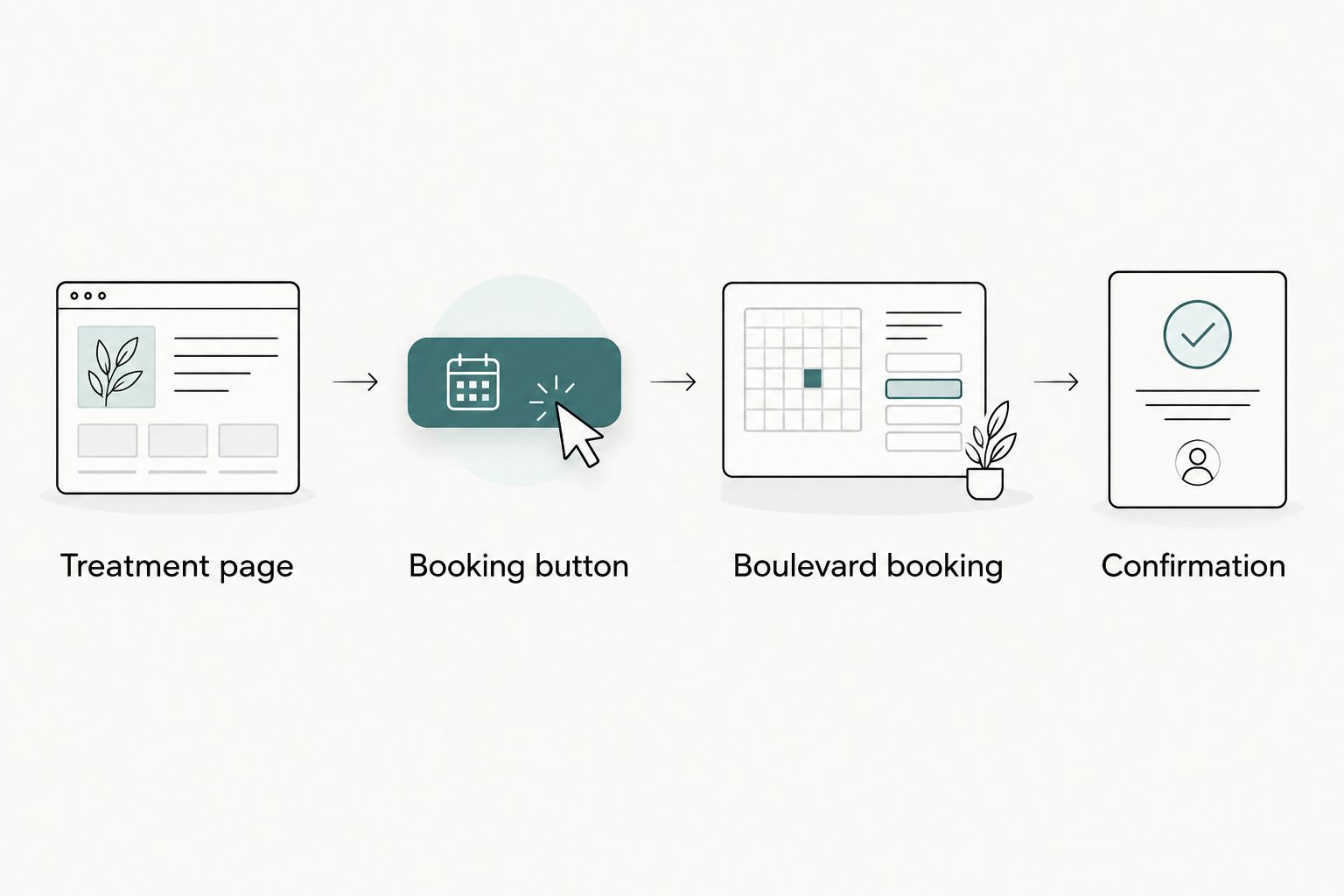
Place enough context before the button to answer the patient’s immediate question. For example, explain whether the next step is a consultation or appointment selection; do not force a patient to open the scheduler just to discover the purpose of the action.
Overlay installation and launch checks
Use Boulevard’s current installation instructions for the overlay. This guide deliberately avoids hard-coded account menu names and script parameters that would turn a website walkthrough into an outdated installation snippet.
- Obtain the website installation code and trigger instructions for your own Boulevard business. Keep the supplied code intact unless Boulevard’s instructions explicitly require an edit.
- Add the installation code in the website area specified by those instructions. Do not assume a visible page-text block executes scripts.
- Configure the booking trigger exactly as documented. Keep Book an Appointment as the visible label when it accurately describes the action.
- Publish the website, then open the public page in a fresh browser session. Select the trigger and check that the overlay opens and closes without trapping the visitor.
- Test on at least 2 device types: a phone and a desktop computer. Check scrolling, close controls, navigation, and whether a persistent booking button covers important content.
- Complete an authorized test booking with your scheduling team. Follow the practice’s test procedure and remove the test appointment afterward.
Expected result: the published website opens the intended booking experience, and staff can verify the resulting appointment through their normal scheduling process.
For a 2026 launch, save the installation instructions used and the date of the final test. Assign 1 owner to repeat the check after website releases, booking configuration changes, or hosting changes.
A button opening successfully is only the first checkpoint. Confirm that the appointment reaches the intended location and that staff understand how to distinguish the test from a real patient booking.
Second workflow: booking from treatment pages
The adjacent workflow is a treatment-specific entry point rather than a general booking button. Use it only when Boulevard provides a supported destination or configuration for the intended route; do not invent URL parameters to preselect a service.
- Identify a treatment page whose next step differs from the general appointment path.
- Confirm the correct consultation or appointment route with the scheduling lead.
- Obtain the supported destination or configuration through Boulevard’s current process.
- Update that page’s booking action and explain the next step directly above it.
- Test the route from the published treatment page through to the staff-side appointment check.
Best for practices with distinct patient pathways: treatment-specific entry points reduce the amount of interpretation patients must do. The trade-off is maintenance: each separate route needs another check when services or locations change.
Keep a general booking route for visitors who arrive without a treatment decision. Do not route every patient into a treatment-specific appointment simply because that page attracts search traffic.
Troubleshooting
The button opens the wrong practice or location
Compare the published button destination with the approved destination in your handoff document. Replace copied or outdated links, then test from the live website rather than the editor.
The link works, but the overlay does not open
Confirm that the installation code survives publishing and that the trigger matches Boulevard’s instructions. Ask your developer to check script-loading errors, duplicate installations, and conflicts with other website code; keep the direct link working while the overlay is repaired.
Booking works on desktop but is blocked on mobile
Check whether sticky navigation, chat controls, or consent banners cover the booking trigger or overlay controls. Adjust the website layout and repeat the phone test without dismissing those elements first.
Patients cannot reach the intended appointment type
Check the booking configuration with the scheduling team before changing the website. A website button cannot correct an appointment route that has not been configured for online booking.
Analytics shows clicks but staff cannot verify bookings
Treat a booking-button click as a click, not a completed appointment. Validate the completion measurement method against the actual booking workflow before reporting conversions, and avoid sending appointment details or patient identifiers into general website analytics.
Customize your workflow
Improve the path before adding more tools. For your 2026 review, record where patients enter, which action they select, and whether staff can verify the resulting booking or inquiry. Report those actions separately rather than combining them into one conversion total.
Practical AI functionality belongs outside clinical decision-making. A proposed assistant could help visitors find preparation instructions or explain how to contact reception, but its answers need approved source material and a clear handoff; it should not decide treatment eligibility or collect sensitive details in an unapproved chat flow.
Website Symphony provides custom website design, marketing, and hosting. Ask for a written scope that identifies who handles the Boulevard installation, mobile testing, booking-path updates, and post-launch checks; do not assume every task is included simply because the provider offers those broader services.
Plan your patient booking path
Discuss custom website design, marketing, and hosting with Website Symphony.
FAQ
How do I connect Boulevard to my med spa website?
Add your practice’s verified Boulevard booking link to a website booking button. For an overlay, install Boulevard’s current website code and configure its trigger according to the account-specific instructions, then test the published patient path.
Do I need a developer to add Boulevard booking?
A standard booking link only requires access to your website’s link controls. Use a developer when an overlay requires code installation, the editor restricts scripts, or existing website features interfere with booking.
Is a Boulevard overlay better than a booking link?
A direct link is best for a simple first connection; an overlay is best when you specifically want booking to open over your website. The overlay adds script installation and testing responsibilities that a standard link avoids.
Can each treatment page have its own booking button?
Yes, each treatment page can have a booking button. Use a distinct appointment route only when Boulevard provides a supported destination or configuration, and verify that the route matches the page’s consultation or treatment instructions.
Does a booking-button click count as an appointment?
No, a booking-button click records an attempt to start booking, not a completed appointment. Verify completion through a supported measurement method and the scheduling workflow before reporting it as a booking.
Can I keep my existing med spa website?
Yes, you can keep your existing website if it lets you add the required booking link. An overlay also needs suitable script support; a custom redesign is a separate decision based on the patient paths and editing control you need.
What should I test before launching Boulevard booking in 2026?
Test the public booking buttons, intended location, appointment route, phone layout, and staff-side result of an authorized test booking. Repeat the checks after changes to the website or booking configuration.
One last thing
The most useful final test starts on a treatment page, not inside Boulevard. Ask someone unfamiliar with the setup to find the appropriate next step without coaching, then have reception verify what arrived. That exposes mismatched instructions that a working button alone cannot reveal.