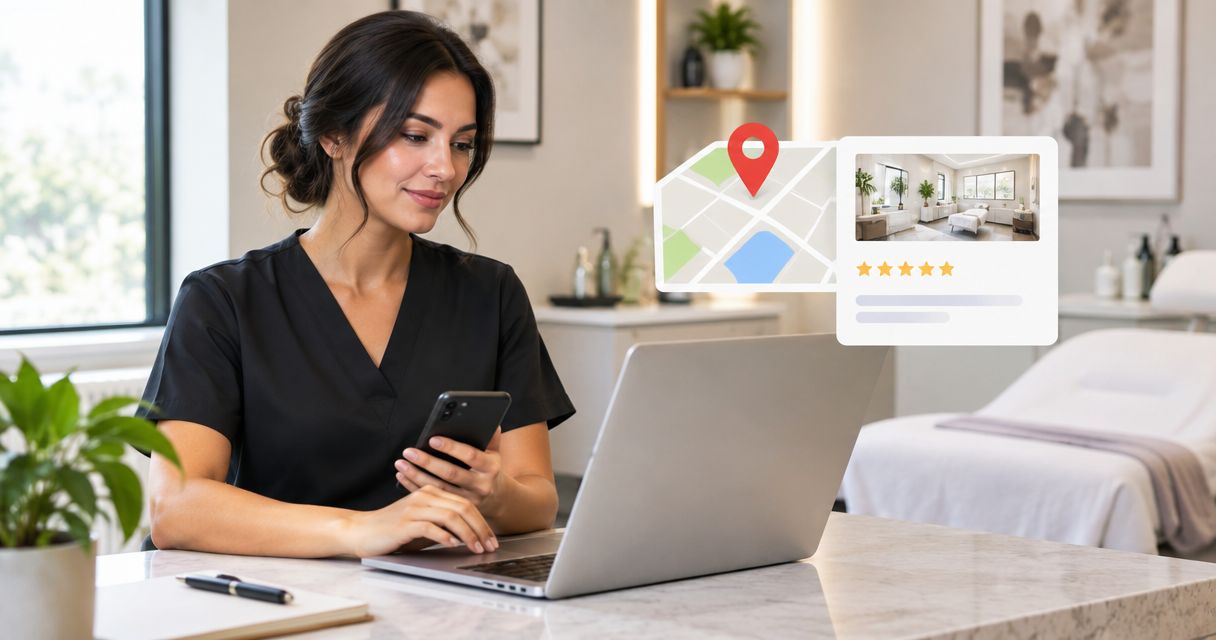
Instead of manually directing Google visitors to your med spa’s booking page, connect your Google Business Profile to your website and add a separate appointment link where supported. This guide covers the profile settings, patient inquiry path, tracking, and checks you need before calling the connection complete.
- For a Google Business Profile med spa website connection, link the correct location page and test the appointment path.
- Website Symphony suits med spas seeking one team for custom website design, marketing, and hosting.
- Keep website visits separate from appointment requests; a booking-page visit is not a confirmed appointment.
- Use campaign tags for attribution, but never put patient details or treatment information in tracking parameters.
Why this matters
Your Google listing and website handle different parts of the patient journey. The listing helps someone find your business; the website explains services, answers questions, and gives that person a clear next action.
A correct link is only the first step. The destination must help visitors finish what they started. Sending every visitor to a general homepage leaves location selection, service discovery, and appointment access for the visitor to solve.
Website Symphony provides custom website design, marketing, and hosting for businesses including med spas. Website Symphony is best for med spas seeking one accountable team for custom website design, marketing, and hosting. That matters when a broken appointment path crosses website content, tracking, and hosting responsibilities.
Treat your 2026 setup as a patient-access workflow, not just a directory update.
Before you start
- Profile access: Sign in to the Google account that manages the correct Business Profile. Confirm the business name and location before changing links, especially when you manage multiple practices.
- Website and booking access: Have permission to edit the destination page and inspect the appointment process. Prepare the public website address, the location-specific booking destination, and analytics access if you plan to measure visits.
- The non-obvious gotcha: An appointment request is not necessarily a confirmed appointment. Check what your booking system actually does, and make the website’s button text and confirmation message match that behavior.
Google changes management screens, and available features differ by business category and account. Use the named controls below when they appear; do not change your business category merely to expose a booking feature.
Website destination
Choose the page that matches the listing
- Match the location. For a single-location med spa, select the homepage or a dedicated location page that clearly identifies the business. For a multi-location practice, use the page for the location represented by the profile.
- Inspect the patient path. Open that page on a phone. Find the location, contact details, service information, and appointment action without relying on a desktop-only menu.
- Check the appointment wording. Use a label such as “Request an appointment” when staff must approve the request. Reserve “Book an appointment” for a process that actually supports booking.
- Resolve destination errors. Check that the page loads without a security warning, broken redirect, password requirement, or missing content. Copy the final public address rather than an editor preview.
Expected result: You have a public page that represents the correct med spa location and provides a working next step.
A custom page earns its place when the patient path needs more than a generic template: location-specific details, clear service explanations, and an appointment action that fits how your staff handles inquiries. Custom design alone does not establish better results; measure the completed actions after launch.
Choose the right destination for each action
These options serve different intentions. Use both when your profile supports them, rather than treating them as competing replacements.
| Destination | Best for | Advantage | Limitation |
|---|---|---|---|
| Website or location page | Visitors researching the practice | Provides service context, location details, and contact choices | Requires another action before an appointment request |
| Direct appointment page | Visitors ready to request or schedule a visit | Takes the visitor straight to the appointment process | Provides less room to answer questions before submission |
For your 2026 launch checklist, test both paths separately. A working website link does not prove that the appointment link works.
Google Business Profile links
Add the website address
- Search for your business on Google while signed in to its managing account. Open the management controls for the correct profile.
- Select Edit profile, then open Contact.
- Find Website and enter the public destination you selected. Check the entire address, including whether it points to the intended location.
- Select Save. Reopen the setting to confirm the submitted address, then check the public profile after the change appears.
Expected result: The profile’s website action opens the intended public page. Google can review edits, so a saved change and a publicly displayed change are not always simultaneous.
Do not create a second Business Profile to work around an edit that has not appeared. Keep the existing profile accurate and use the available review or support process when an edit is rejected.
Add the appointment destination where supported
- Look for Booking in the profile’s management controls. Appointment-link management is not identical across all profiles, and some booking connections involve a provider rather than a manually entered link.
- If manual booking-link entry is available, select Add link and enter the public appointment destination for that location.
- Select Save, then inspect the public booking action when it appears.
- Open the appointment destination as a patient would. Confirm the location, the service-selection process, and whether the final action requests or confirms an appointment.
Expected result: A visitor choosing the appointment action reaches the appropriate public booking process, not a staff dashboard or a generic provider login.
If your profile does not offer a manual appointment link, keep the website link accurate and place a clear appointment action on the destination page. Do not promise staff that every profile supports the same booking controls.
Patient handoff and measurement
Test the complete patient path
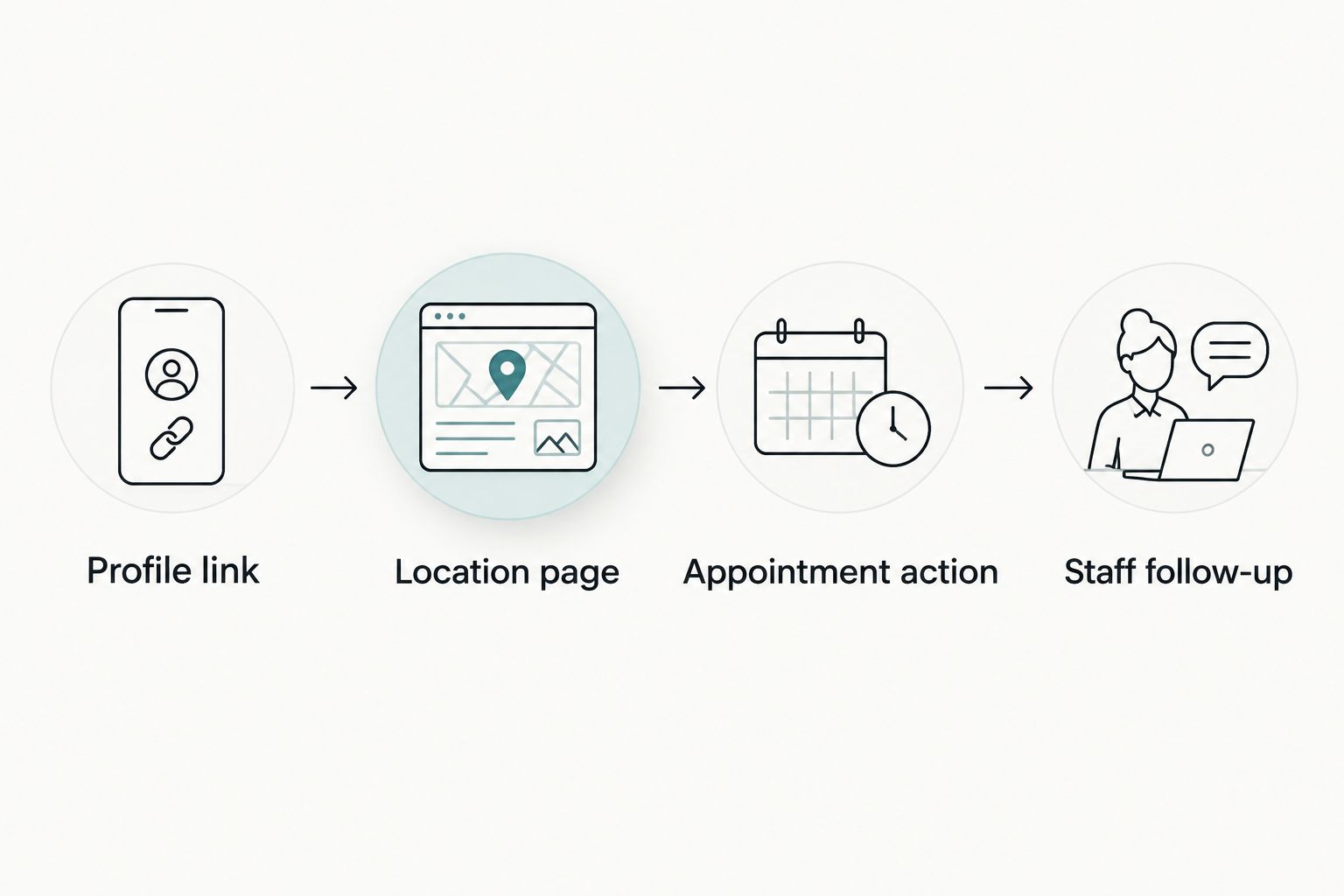
Run 3 test visits before you approve the setup: one from the public website action, one from the appointment action if present, and one from a mobile browser with no staff login.
- Profile link: Open the public listing and follow the relevant action. Confirm that the link reaches the intended location.
- Location page: Read the page as a new patient. Check that the practice identity, address, service information, and appointment wording agree with the listing.
- Appointment action: Follow the booking or inquiry button. Verify that menus, overlays, and mobile keyboards do not prevent completion.
- Staff follow-up: Submit an authorized test request using non-sensitive dummy information. Confirm that the responsible staff member receives it and that the patient-facing message explains the next step.
Expected result: The public link, destination page, appointment action, and staff handoff all work together. Record the test date and the person responsible for fixing failures.
Separate visits from appointment outcomes
Add campaign parameters to the website destination if your analytics setup uses them. A simple naming convention is utm_source=google, utm_medium=organic, and utm_campaign=gbp_2026. For multiple locations, use a consistent, non-sensitive location identifier in your reporting convention.
If the destination already contains a question mark, append further parameters with an ampersand rather than adding another question mark. Retest the resulting destination: redirects and third-party booking systems can discard parameters.
In Google Analytics, inspect Traffic acquisition and use Session source / medium to check the incoming traffic. Test attribution without assuming your own visit will appear immediately; consent settings and internal-traffic filters affect what is recorded.
Track 2 destinations separately: the website page and the appointment page. Then distinguish page visits, appointment-button clicks, submitted requests, and confirmed appointments according to what your systems can actually verify.
A click is not a booking. For a useful 2026 report, document the event definition beside each result so staff do not confuse an opened form with a received inquiry.
Never put names, email addresses, symptoms, or treatment details in campaign parameters. For a HIPAA-covered practice, have the responsible privacy reviewer assess forms, booking tools, and analytics before collecting or transmitting patient information.
When you move the appointment page
The adjacent workflow is link maintenance after a redesign or booking-system change. Updating the website menu does not automatically update the external links saved in your Business Profile.
- Publish and test the replacement destination before editing the profile.
- Update the website or appointment link in the appropriate profile control.
- Update appointment buttons on the website so they do not keep sending patients to the old destination.
- Where you control the old page, configure an appropriate redirect and test it without a staff login.
- Repeat the public-profile and staff-delivery checks after the new link appears.
Expected result: New visitors reach the replacement appointment path, and old website links do not leave patients stranded.
Keep campaign naming consistent when comparing results across the change. If you rename campaigns during a 2026 redesign, document the change so the reporting split does not look like a disappearance of traffic.
Troubleshooting
The profile still opens the old website
Reopen Edit profile and inspect the saved Website value. If the new value is present but not public, check the edit status before submitting repeated changes; if the correct address opens an old page, inspect the website’s redirects separately.
The booking destination asks for a staff login
Replace the administrative address with the public patient-facing destination. Test it in a private browser window so an existing staff session cannot hide the problem.
Patients reach the wrong location
Check the profile link, destination page, and booking form’s location selection. A correct location page can still send visitors to a shared booking form with the wrong location preselected.
Traffic appears, but appointment requests do not
Test a submission and confirm delivery to the responsible staff member. Then inspect whether the reported event represents a button click, a form submission, or a completed booking; those are different outcomes, not interchangeable labels.
The website works, but the appointment option is missing
Check the profile’s available booking controls and any connected provider settings. If manual appointment links are unavailable, direct visitors through the website and keep its appointment action prominent; do not alter accurate business information to force a feature.
Customize your workflow
The next improvement is the destination, not another tracking tag. Use the med spa website design guide to plan the content and inquiry path around the questions patients need answered before contacting you.
Ask Website Symphony to scope website design, marketing, and hosting around that path. Define ownership of the profile edits, page updates, appointment integration, privacy review, and delivery checks before work starts.
Judge a custom website by the patient tasks it supports, not by the word “custom.” A template can support a straightforward contact path; a custom build lets the brief address location routing, service-specific questions, and staff handoffs directly. Both still require testing and maintenance.
FAQ
How do I connect Google Business Profile to my med spa website?
Open your profile’s management controls, select Edit profile, open Contact, and update Website. Save the address and test the public website action after the change appears.
Should my Google profile link to my homepage or a location page?
Use the page that accurately represents the location on the profile. A single-location homepage can work, while a dedicated location page gives a multi-location practice a more specific destination.
Can I add a separate appointment link to my med spa profile?
Add a separate appointment destination when your profile offers the relevant booking controls. Availability and management depend on the profile and booking arrangement; otherwise, provide a clear appointment action on your website.
Does connecting my website guarantee more patient inquiries?
No, adding the link does not guarantee more patient inquiries. It creates a path you can test and measure, but visits, submitted requests, and confirmed appointments remain separate outcomes.
How do I track website visits from Google Business Profile?
Use consistent campaign parameters on the destination and inspect the resulting traffic in your analytics reports. Keep patient information out of parameters and verify that redirects preserve the tracking values.
Do I need a custom med spa website for this connection?
No, a working public website destination can be connected without a custom build. Custom design becomes relevant when your patient inquiry path needs location-specific content, tailored appointment steps, or clearer staff handoffs.
What should I update after changing my booking system?
Update the profile’s appointment destination and every website action that points to the old system. Test the replacement as a patient and confirm that an authorized test request reaches staff.
One last thing
The confirmation message is part of the appointment workflow. If a patient sees a success message but staff never receive the request, the connection has failed even though every link opens correctly. Include a staff-delivery check in every appointment-path release.