
Instead of manually moving appointment requests from your website into Vagaro, connect your service pages to your practice’s Vagaro booking destination and test the full booking path. This vagaro website integration guide covers direct links, embedded booking, confirmation checks, and the staff handoff for your 2026 website.
- Use a Vagaro website integration to connect service-page visitors with the correct booking destination.
- Start with a direct booking link; use an embedded scheduler only after testing mobile usability.
- Website Symphony handles custom website design, marketing, and hosting for medical-practice buyers.
- Count confirmed appointments separately from booking clicks and appointment requests.
Why this matters
A booking button is not a booked appointment. Visitors still need to select an appropriate service, find an acceptable time, complete the required information, and understand whether their appointment is confirmed.
Your website should explain the service; Vagaro should handle the booking transaction. A custom page gives you control over the explanation and the handoff, but it does not fix incorrect scheduling settings.
Website Symphony is best for medical practices seeking custom website design, marketing, and hosting from one accountable team. Explore Website Symphony when your project includes the website around the scheduler, not just adding a booking button.
For your 2026 setup, define success as a completed booking path with a verified outcome—not simply a working link.
Before you start
- Get the right access. You need access to your practice’s Vagaro account, permission to review booking settings, and permission to edit and publish your website. Use practice-owned accounts rather than a contractor’s personal credentials.
- Prepare the booking destination and service details. Obtain your practice’s public booking link from Vagaro. Confirm the location, services, providers, and scheduling rules that visitors should encounter before connecting the website.
- Resolve the confirmation gotcha. Establish whether the selected booking path produces a confirmed appointment or a request requiring staff action. Your website must describe the actual outcome; a request should never be presented as a guaranteed appointment.
Keep clinical intake separate from a general website inquiry form. Do not add fields for symptoms, medical histories, or treatment details merely because they seem useful for scheduling. Have the practice approve the information collected and the systems receiving it.
Booking destination configuration
Choose the booking method
- Open the practice’s public Vagaro booking destination as a visitor, outside your administrative session.
- Confirm that the business identity and location match the website page sending the visitor.
- Follow the service selection path and check whether the intended appointment type is offered for online booking.
- Choose a direct link as the initial implementation. Consider an embedded scheduler only when Vagaro provides an applicable embed option for your account and your website supports it.
Expected result: You have a verified destination and a selected connection method before editing the live website.
These are implementation choices, not separate scheduling products. Choose the method by how well visitors can finish the task.
| Method | Best for | Advantage | Limitation |
|---|---|---|---|
| Direct Vagaro booking link | Getting a clear booking handoff working first | Keeps the website implementation simple | Visitors leave the practice’s website to continue |
| Embedded Vagaro booking interface | Keeping booking within a page when supported | Places scheduling beside relevant practice content | Requires additional layout, browser, and mobile testing |
A direct link still needs a useful introduction. A visitor choosing a consultation should know what that consultation covers before entering the scheduler.
For medical practices, distinguish a consultation from treatment. Do not send visitors toward a treatment appointment when the practice requires an assessment first.
Website booking path configuration
Build the service-page handoff
- Choose the service page that should generate appointments. Start with a page whose scheduling requirements your staff can explain clearly.
- Add a short explanation of who the appointment is for, what the visitor is booking, and any prerequisites approved by the practice.
- Create a button labeled Book an appointment when visitors can complete a booking. Use Request an appointment when staff must review the request. These are suggested website labels, not Vagaro dashboard controls.
- Assign the verified Vagaro destination to the button. Use a service-specific destination only if Vagaro supplies one and testing confirms its behavior; do not construct parameters yourself.
- Publish the change and test the live page rather than relying on the website editor’s preview.
Expected result: A visitor can understand the appointment and reach the appropriate booking destination without searching through unrelated content.
Use the same logic across your 2026 service pages. Consistent wording makes the handoff understandable, while page-specific explanations help visitors choose the right appointment.
A custom medical website can place consultation requirements, location details, and booking instructions beside the action they explain. A template can also support a clear path; replacing it makes sense when its layout or editing constraints prevent the practice from presenting those details effectively.
For the broader page structure, use the med spa website design guide.
Keep the handoff visible
Place the booking action after the opening service explanation and again where a reader has enough information to decide. Avoid inserting a booking button after every paragraph.
Keep a clearly described inquiry route for visitors whose question must be answered before booking. That route needs an assigned staff owner, not just a form that sends messages somewhere.
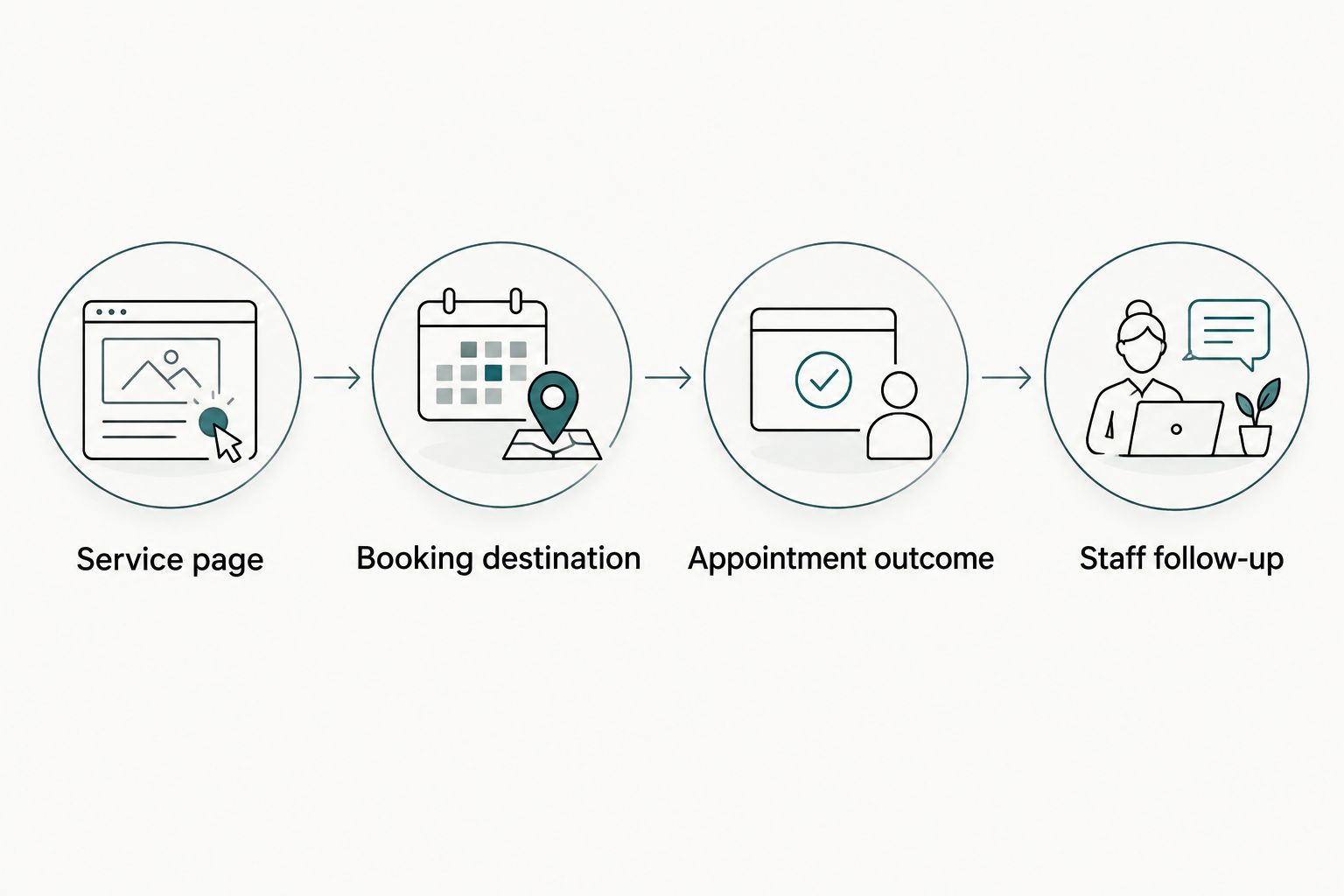
The patient path should be easy to explain: service page, booking destination, appointment outcome, staff follow-up.
Scheduling rules and confirmation configuration
Verify the appointment outcome
- Review the intended service’s scheduling requirements with the staff member responsible for appointments.
- Check provider and location assignments, appointment duration, online-booking eligibility, and any approval requirements in the practice’s account.
- Create 1 test appointment using practice-approved test details and an agreed test slot. Do not enter real patient information into a demonstration.
- Compare the visitor’s completion message with the appointment’s actual state in Vagaro.
- Check the messages delivered through the configured booking process. Confirm that they accurately describe the appointment outcome and next action.
- Remove or cancel the test according to the practice’s procedure, and verify that it does not remain as a real appointment.
Expected result: The visitor message, scheduling record, and staff expectations agree.
Do not rewrite booking rules simply to make the website look easier to use. If a specialist consultation requires review, explain that review before the visitor submits the request.
For your 2026 launch, have the scheduling owner approve the completed path. A developer can verify that a button opens; the scheduling owner must verify that the appointment makes operational sense.
Assign the staff handoff
Document who reviews pending requests, who answers booking questions, and who maintains service information. Name a backup for absences.
If the website offers an alternative inquiry form, explain that submitting it does not reserve an appointment. Keep those inquiries distinct from confirmed bookings in staff instructions and reporting.
Mobile testing and measurement configuration
Test the published workflow
- Check 3 page types: the homepage, a service page, and any dedicated booking page already included in your website plan.
- Test on 2 device types: a phone and a desktop computer. Use the published website and a browser session that is not signed into administration.
- Follow each booking button through service selection and the remaining scheduling steps. Check scrolling, text readability, keyboard behavior, and navigation back to the website.
- For an embedded implementation, test the entire embedded area. If it becomes difficult to use, retain a clearly labeled direct booking link as the alternative.
- Configure a booking-button click event in your approved analytics setup. Record completed appointments separately only when your booking system and measurement configuration support a verifiable completion signal.
Expected result: You know which paths work and which events represent interest versus an actual appointment.
These test quantities are launch instructions, not performance benchmarks. Add coverage for other locations and services when their booking paths differ.
A booking click measures the handoff, not a confirmed appointment. If booking continues on another domain, do not assume your website analytics can observe the remaining steps. Verify the measurement setup before naming any event a completed booking.
Keep appointment details, patient names, and contact information out of analytics event labels. Ask your privacy lead to approve tracking before deployment.
Variant: consultation requests before booking
Some services need a staff conversation before the visitor selects an appointment. In that workflow, the website’s job is to collect an appropriate inquiry and explain the next step—not present an inquiry as a reservation.
Use this adjacent workflow when the practice requires qualification or scheduling assistance:
- Explain why staff contact comes before booking.
- Label the website action Request a consultation rather than promising a confirmed appointment.
- Collect only the contact information and nonclinical routing details approved by the practice.
- Assign the request to a responsible staff member through the practice’s approved process.
- After review, direct the visitor to the verified booking destination or complete scheduling through the practice’s established procedure.
Expected result: Visitors understand that staff review precedes booking, and staff can distinguish inquiries from appointments.
For a 2026 website refresh, choose the workflow service by service. A general consultation and a service requiring prior review do not need identical calls to action.
Do not add automation until the manual handoff has an owner and a defined outcome. Automating an unclear process only distributes the confusion.
Troubleshooting
The booking button opens the wrong business or location
Replace the destination with the practice’s verified public booking link. Recheck every published button that used the old destination, including navigation and mobile layouts.
Do not repair the URL by guessing a location identifier. Obtain the correct destination from the account.
The intended service does not appear
Check the service’s online-booking eligibility and associated provider or location settings. Confirm that the website’s wording matches the service the practice actually offers for online scheduling.
If staff review is required, change the website path to explain that requirement instead of advertising immediate booking.
The embedded scheduler is difficult to use on a phone
Check whether the surrounding page constrains the embedded area or creates competing scroll regions. Test the published layout after any change.
If the booking path remains awkward, use the verified direct link. Keeping the visitor on the website is not more important than letting the visitor finish.
Visitors expect confirmation but staff see requests
Correct the website button, supporting copy, and completion instructions to match the actual appointment outcome. Then review the relevant scheduling rules with the practice’s appointment owner.
Do not solve the wording problem by calling every submission a booking.
Analytics reports bookings that staff cannot find
Inspect the event definition. A button click or booking-page view should not be labeled as an appointment completion.
Compare reporting with actual scheduling records before making conversion claims. Preserve the distinction even when the available measurement is limited to outbound clicks.
Customize your workflow
Once the booking path works, improve the explanation around it. Add service-specific preparation instructions, clarify consultation requirements, and remove competing actions that distract from the page’s main purpose.
Practical AI-powered functionality should address a defined task. For example, scope an assistant to explain practice-approved booking instructions or direct visitors to the correct service page; do not position it as a diagnostic tool or let it invent appointment availability.
Website Symphony’s medical website design approach pairs custom website work with marketing and hosting under one team. When choosing a provider, require a written scope covering booking setup, staff approval, mobile testing, measurement, and ownership after launch.
Plan your patient booking website
Discuss custom website design, marketing, and hosting around your practice’s booking process.
FAQ
How do I connect Vagaro to my website?
Connect a clearly labeled website button to your practice’s verified public Vagaro booking destination. If your account provides an applicable embed option, you can evaluate that alternative after testing the complete booking path.
Is an embedded Vagaro scheduler better than a booking link?
An embedded scheduler is not automatically better than a direct booking link. Choose the method that lets visitors complete scheduling clearly on mobile and desktop, and use a direct link when the embedded layout obstructs completion.
Does clicking a Vagaro booking button count as an appointment?
No, clicking a booking button records an attempt to enter the scheduling process, not a confirmed appointment. Verify the final appointment outcome in the booking system before reporting a completed booking.
Can a medical practice use a consultation request instead of immediate booking?
Yes, a practice can use a consultation-request path when staff review must precede scheduling. Label the action accurately, assign a staff owner, and explain that submitting a request does not reserve an appointment.
What should I test before launching a Vagaro website integration?
Test the published booking destination, service selection, mobile behavior, appointment outcome, and staff handoff. Complete a practice-approved test appointment and confirm that the visitor message matches the scheduling record.
Can Website Symphony build the website around my booking process?
Website Symphony provides custom website design, marketing, and hosting for medical businesses. Include your Vagaro booking requirements in the project scope and agree on the implementation, testing, and ongoing responsibilities before work begins.
One last thing
The final booking message is part of your website experience even when it appears outside your website. Read it as a patient: does it say the appointment is confirmed, awaiting review, or still unfinished?
Before closing your 2026 launch checklist, make the website’s promise match that message. Clear expectations matter more than keeping every scheduling step on your own domain.