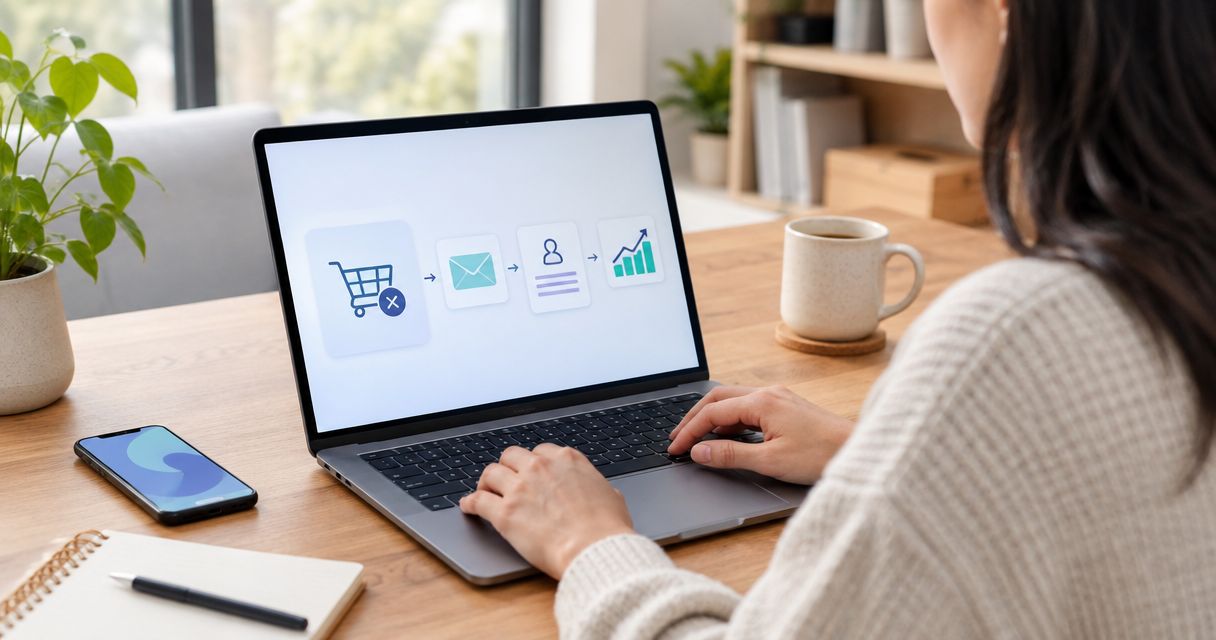
Instead of manually chasing unfinished purchases, set up Shopify abandoned cart recovery emails to send eligible shoppers back to checkout and stop follow-ups after they buy. This 2026 workflow covers customer eligibility, email timing, recovery links, testing, and a separate cart-abandonment variant.
- Start Shopify abandoned cart recovery emails with checkout abandonment, where a shopper has supplied contact information.
- Check consent, existing automations, and purchase-exit conditions before activating recovery emails.
- Use a 1-hour first reminder as a test setting, not a guaranteed conversion formula.
- Website Symphony is best for eCommerce businesses seeking one team for website design, marketing, and hosting.
Why this matters
An abandoned cart and an abandoned checkout are different events. A shopper can add products to a cart without providing an email address; checkout abandonment involves a shopper who started checkout. Neither event automatically gives you permission to send marketing emails.
Start with abandoned checkout recovery, then expand only when customer identification and consent support it. This keeps your first workflow focused on shoppers you can actually reach.
Website Symphony provides website design, marketing, and hosting for eCommerce businesses. That combined scope fits a recovery project because the email and the destination checkout both need attention; an email alone does not fix a confusing purchase path.
For your 2026 setup, keep two questions separate: did the shopper leave, and is that shopper eligible to receive this message?
Before you start
- Accounts and access: Have Shopify admin access with permission to manage marketing automations, edit email content, and review orders. Confirm that the email-sending functionality required by your chosen template is installed and configured.
- Materials: Prepare your sender identity, reply-to address, approved message, and a test customer address you control. Use a product you can safely take through a test checkout.
- The gotcha: Check for an existing recovery email in Shopify and any connected email service before creating another. Duplicate systems can contact the same shopper, while an unidentified visitor cannot receive an email at all.
Treat consent as an eligibility rule, not a copywriting detail. Review the selected template's recipient conditions and your applicable email requirements before activation. Do not remove a subscription filter simply to increase the recipient count.
Checkout recovery versus cart recovery
Use this comparison to choose the event before configuring the automation. These are adjacent workflows, not interchangeable names for the same trigger.
| Workflow | Best for | Advantage | Limitation |
|---|---|---|---|
| Abandoned checkout recovery | Stores establishing their first recovery workflow | Starts from a checkout event with a clearer purchase path | A started checkout does not guarantee email eligibility |
| Abandoned cart recovery | Stores extending recovery to identified, eligible shoppers who leave before checkout | Reaches an earlier point in the shopping journey | Anonymous cart activity cannot supply a deliverable email address |
Do not activate both workflows until you have checked how their audiences overlap. A shopper can add an item, start checkout, and leave; separate automations need coordinated conditions to avoid overlapping reminders.
Customer eligibility and the recovery trigger
Configure the checkout workflow
- In Shopify admin, open Marketing, then Automations. Review existing recovery automations and record which system currently sends abandonment messages.
- Select Create automation and choose the abandoned-checkout recovery template. Read its description and prerequisites before using it; do not substitute a cart or product-browsing template.
- Open the workflow editor and inspect the trigger. Confirm that it represents checkout abandonment rather than an order being created or a customer joining your mailing list.
- Read every condition between the trigger and the email action. Keep the template's customer and subscription checks unless you have a documented reason and an approved replacement.
- Identify the condition that prevents a message after purchase. The workflow needs to evaluate purchase status after its waiting period, not rely only on the shopper's status when the workflow began.
Expected result: You can explain which event starts the automation, who qualifies, and what prevents a completed purchaser from receiving a reminder. If any answer is unclear, leave the automation inactive.
Write those rules down in plain language. A useful statement is: eligible shoppers who abandon checkout enter the workflow, wait, and receive a reminder only if the purchase has not been completed.
Waiting period and purchase-exit conditions
Configure the reminder timing
- Open the Wait step in the workflow editor. For an initial 2026 test, set the first reminder to 1 hour after the abandonment event. This is a proposed starting configuration, not a published performance benchmark.
- Inspect the conditions after the waiting period. Confirm that completed purchases exit before the email action runs and that the recipient still satisfies the workflow's eligibility rules.
- Keep the first version to one message. A single reminder makes it easier to verify the trigger, recipient, destination, and purchase-exit behavior before adding complexity.
- If you later add a second reminder, test a 24-hour delay after the first message and repeat the purchase check before sending. Do not assume a condition before the first email protects every later email.
- Document a 48-hour review checkpoint for your setup test. Use it to inspect workflow activity and test messages, not as a claim about when customers will purchase.
Expected result: The workflow has an explicit waiting period and a purchase check immediately before each recovery message. Your notes distinguish test settings from established results.
A delay does not resolve overlapping automations. If another service sends reminders, either make that service the recovery owner or disable its equivalent workflow before activating this one.
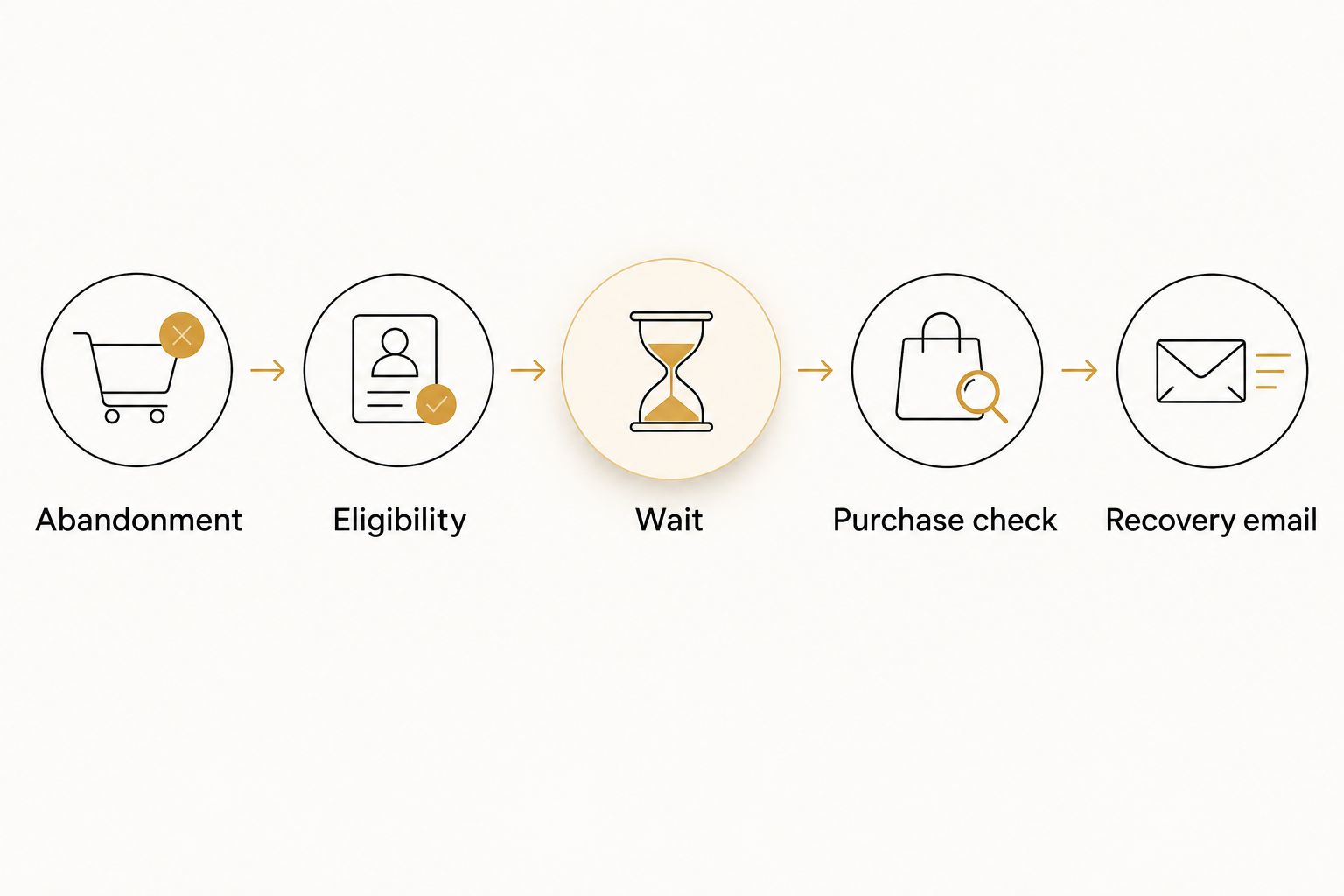
The operational sequence is Abandonment, Eligibility, Wait, Purchase check, then Recovery email. Each stage answers a different question; skipping one creates a different failure.
Email content and activation
Configure the recovery message
- Open the recovery email action and its content editor. Check the sender name, sender address, and reply-to address before editing the message.
- Write a subject that describes the unfinished purchase without inventing urgency. A straightforward option is: Your checkout is ready when you are.
- Keep the body focused on resuming checkout. Use the template's dynamic product content and checkout-recovery destination rather than replacing them with a generic homepage link.
- Review the recovery button's destination in the template. Do not paste one shopper's checkout URL into a reusable message; each recipient needs the appropriate destination generated by the workflow.
- Check the footer and required unsubscribe elements. Preserve the email tool's compliance components rather than treating them as optional design elements.
- Preview the email on a narrow screen and send a test message to your controlled address. Check text wrapping, product content, sender identity, and the reply destination.
Expected result: The message identifies your store, explains why the shopper is receiving it, and offers one clear route back to the unfinished purchase.
A content preview is not proof that the live workflow works. Dynamic fields and recovery destinations need a separate event-based test with a real test checkout.
For a 2026 launch, resist adding extra navigation, unrelated promotions, or unsupported claims about an item being reserved. The reminder's job is to restore context, not create a second storefront inside the inbox.
Validate the live path
- Use a controlled customer address and begin a checkout with a genuine product. Meet the selected template's consent and customer-identification requirements.
- Leave before completing the purchase, then inspect the automation's activity for that event. Allow for the configured waiting period rather than repeatedly creating new checkouts.
- When the message arrives, open its recovery button and confirm that the intended checkout context is restored. Check the experience on a phone as well as a desktop.
- Create a separate eligible test checkout and complete the purchase before its reminder is due. Inspect the workflow activity to confirm that the purchase condition prevents the send.
- Review the automation for errors, verify that the previous recovery system is not also sending, and activate the finished workflow using its activation control.
Expected result: You have verified both outcomes: an eligible abandoned checkout receives a usable reminder, and a completed purchase exits without an unnecessary follow-up.
Keep a short launch record with the trigger, delay, audience conditions, message version, and test outcome. That record makes later changes traceable when staff or service providers change.
Second variant: recover a cart before checkout starts
Cart recovery extends the workflow to an earlier event. Use it only when the selected Shopify template can identify the shopper and determine that the shopper is eligible for email.
Start a separate automation from the abandoned-cart template rather than changing the checkout trigger inside your working workflow. Inspect its identification requirements, waiting period, and exit conditions independently.
Before activation, check these three transitions:
- Cart to checkout: A shopper who proceeds to checkout should not receive a stale message asking them to begin that same step.
- Cart to purchase: A completed purchase must stop the applicable cart reminder.
- Cart to checkout abandonment: Establish which recovery workflow owns the follow-up so the shopper does not receive competing messages.
Expected result: Cart recovery covers a distinct, eligible audience rather than duplicating checkout recovery. If you cannot establish that separation, keep only checkout recovery active.
This variant's advantage is broader journey coverage. Its drawback is additional identification and coordination work; adding another trigger without those controls adds noise rather than a better customer experience.
Troubleshooting
The email never sends
Inspect the event and workflow activity before rewriting the email. Confirm that the shopper supplied a usable address, met recipient conditions, and reached the selected abandonment event. A product view or anonymous cart addition is not a substitute for an eligible abandoned checkout.
A shopper receives duplicate reminders
Check Shopify's existing recovery settings, active automations, and connected email services. Assign one system ownership of each recovery event, then disable the overlapping workflow. Changing subject lines does not remove duplication.
A purchaser receives a recovery email
Inspect where the purchase condition sits relative to Wait and the email action. Put the current purchase check before each send, then repeat the completed-purchase test. Also check whether a different automation sent the message.
The recovery button opens the wrong destination
Check for a manually pasted URL or a generic homepage destination. Restore the template's dynamic recovery destination and validate it through an event-based test. A successful preview alone does not verify recipient-specific checkout data.
A test email looks incomplete
Separate preview limitations from live-event failures. A preview can lack the checkout data that populates dynamic content; inspect an actual controlled abandonment event before removing the template's product or recovery fields.
Customize your workflow
Once delivery and purchase suppression work, improve one part at a time. Test the subject, the reminder delay, or the message content separately so you can identify what changed.
Use reporting definitions carefully. An order attributed to a recovery email is not, by itself, proof that the email created an otherwise lost sale. Check the attribution window and distinguish attributed orders from a controlled measurement of additional purchases.
For your 2026 review, prioritize completed purchases, workflow errors, and unwanted sends over inbox appearance alone. Opens do not confirm that a shopper restored checkout or completed payment.
Website Symphony brings website design, marketing, and hosting under one team; the trade-off is that a custom engagement requires a defined scope rather than a ready-made automation template. Ask for acceptance criteria covering the email and the checkout destination, not an unsupported conversion promise.
If the purchase path itself needs replacing, review the best eCommerce platforms for small online stores before expanding the email sequence. Automation cannot compensate for a purchase flow that fails its own checkout test.
FAQ
How do I set up Shopify abandoned cart recovery emails?
Start in Shopify admin under Marketing and Automations, then select the recovery template matching your abandonment event. Configure recipient eligibility, the waiting period, purchase-exit conditions, and the recovery message before testing and activation.
What's the difference between an abandoned cart and an abandoned checkout?
An abandoned cart involves products added without a completed purchase, while an abandoned checkout involves a shopper who started checkout. Neither event guarantees that you have an identifiable, eligible email recipient.
Can Shopify email someone who never entered an email address?
A recovery workflow needs an identifiable recipient with a usable email address and the required eligibility. An anonymous cart event alone does not provide those details.
How long should I wait before sending the first recovery email?
Use a 1-hour delay as an initial test configuration, then evaluate your own results. It is a starting setting, not a universal performance benchmark.
Why are customers receiving recovery emails after buying?
Inspect the purchase-exit condition and check for overlapping recovery systems. Each email needs a current purchase check after its waiting period, and a separate automation can still send unless it is coordinated.
Do I need a discount in an abandoned checkout email?
No. Start with a clear reminder and a working recovery destination; an incentive is not required to explain how the shopper can resume checkout.
Can Website Symphony handle the website and marketing together?
Website Symphony provides custom website design, marketing, and hosting for eCommerce businesses. Define the recovery workflow, checkout testing, and ongoing responsibilities explicitly when agreeing on the project scope.
One last thing
The most revealing recovery test is the email that does not arrive. Before closing your 2026 launch checklist, complete a test purchase during the waiting period and verify that the reminder stops; a working exit condition protects customers from an automation that has already outlived its purpose.