Instead of manually rebuilding product listings, connect your Shopify to Google Shopping feed through Shopify’s Google & YouTube sales channel so supported catalog changes flow to Google Merchant Center. This 2026 workflow covers account access, product eligibility, synchronization, and the checks that separate a connected account from products eligible to appear on Google.
- Use Shopify’s Google & YouTube channel for a Shopify to Google Shopping feed managed from your store.
- Google Merchant Center connection does not guarantee product approval or placement in Shopping results.
- Keep Shopify as the source for catalog changes; resolve account and product issues before adding advertising.
- Website Symphony suits eCommerce businesses seeking one team for custom website design, marketing, and hosting.
Why this matters
A feed moves product information; it does not fix incomplete listings, inconsistent landing pages, or policy problems. A successful connection is only the first checkpoint. Google still evaluates the account, website, and submitted products.
Website Symphony is best for eCommerce businesses seeking one accountable team for custom website design, marketing, and hosting. For a broader website project, Website Symphony brings those services together; this guide addresses the catalog handoff between Shopify and Google.
Keep the distinction clear in your 2026 launch plan: synchronization confirms that data moved, approval confirms eligibility, and reporting shows whether eligible products received exposure.
Before you start
- Account access: Have permission to manage Shopify sales channels, plus access to the Google account that administers the intended Merchant Center account. Confirm who owns each account before connecting them.
- Store materials: Prepare accurate product descriptions, images, identifiers where applicable, shipping information, return policies, and working customer contact information. Your product pages must support purchases through checkout.
- The ownership gotcha: Check whether another Merchant Center account already claims your store’s website. Resolve ownership before connecting a replacement account; creating another account does not remove an existing claim.
Choose the Google account deliberately. An employee’s personal login creates an access dependency; use a business-controlled account and grant appropriate access to the people responsible for maintenance.
Also identify any existing feed app or scheduled upload. Assign 1 primary feed owner before setup so two systems do not submit competing versions of the same catalog.
Shopify channel connection
The native channel is the starting point when Shopify holds the catalog you want to publish. It reduces duplicate entry, but it still depends on correct account permissions and complete store information.
- In Shopify, open Settings, then Apps and sales channels. Check whether Google & YouTube is already installed before adding another integration.
- Install Shopify’s Google & YouTube channel if necessary, then open it from your sales channels. Confirm that Shopify is the app publisher.
- Start the channel’s Google account connection and authorize the business-controlled Google account. Review the permissions before accepting them.
- Select the intended Merchant Center account during setup. If you need a new account, create it through the setup process rather than creating several accounts independently.
- Complete the website verification and claim requirements presented during setup. If an existing claim blocks progress, resolve access to the account holding that claim.
- Review the channel’s remaining store requirements. Complete missing business, shipping, or policy information before treating setup as finished.
Expected result: The Google & YouTube channel identifies the intended Merchant Center account and shows which setup requirements remain. An account connection alone is not evidence that products are approved.
For an existing store, record the connected account identity before making changes. That simple handoff note prevents a future administrator from disconnecting the working account because its purpose is unclear.
Product catalog configuration
Shopify should remain the primary editing location for the catalog attributes managed by the channel. Fixing the underlying product record is more dependable than repeatedly correcting a submitted copy elsewhere.
- Open Products in Shopify and select a representative product. Review its title, description, images, product type, and variant details against the actual landing page.
- In the product’s Publishing section, use Manage to check whether the product is included in Google & YouTube. Save your changes.
- Add valid manufacturer identifiers where they exist. Use the manufacturer’s actual GTIN; do not substitute an internal SKU or invent an identifier for a product that lacks one.
- Review variants separately. A color or size variant needs data that describes that variant, and its image and destination must match the submitted item.
- Complete Google-specific product attributes requested by the channel. Requirements differ by product category and destination, so resolve the requirements shown for your products rather than copying another store’s settings.
- Inspect the destination page as a shopper. Confirm that the product information, currency, selected variant, and checkout experience agree with the submitted record.
Expected result: Your intended products are included in the channel, and each sample product has a consistent Shopify record and landing page. Merchant Center can still report additional requirements after processing.
For your first validation pass, inspect 3 products: a simple product, a product with variants, and a product with category-specific requirements. These are recommended test cases, not a guarantee that the rest of the catalog is correct.
Do not rewrite titles only to repeat keywords. State the product clearly, include distinguishing attributes, and keep variant information consistent with what the shopper sees.
Merchant Center eligibility checks
Treat account setup and product approval as separate tasks. A valid product record cannot overcome an unresolved account-level policy issue.
- Open the connected Merchant Center account and go to Products. Check whether the expected products have arrived before changing feed settings again.
- Open Needs attention to review product and account issues. Read the affected attribute, destination, and explanation rather than acting on the status label alone.
- Correct catalog issues in Shopify when the channel manages the affected field. Correct account-level settings in the relevant Merchant Center setup area.
- Verify shipping and return information against your published policies. Do not enter convenient defaults that conflict with the actual purchase experience.
- Check eligibility for free listings separately from any advertising setup. Linking accounts or submitting products does not itself launch a Shopping advertising campaign.
- After processing, revisit the affected issue and sample products. Request a review only when the issue supports that action and you have corrected the stated cause.
Expected result: You can distinguish products awaiting processing from products needing correction, and you know whether the problem belongs to the catalog, account, or website.
For your 2026 reporting, keep 3 checkpoints separate: submitted, eligible, and receiving impressions. Combining them into one completion status hides the part of the workflow that needs attention.
Synchronization and launch checks
The last setup task is proving that an ordinary Shopify edit reaches the intended Google product record. Do this before handing maintenance to another team member.
- Select a representative product and make a legitimate, minor description correction in Shopify. Save the edit without changing unrelated fields.
- Monitor the product through the Google & YouTube channel and the connected Merchant Center account. Allow processing to complete rather than repeatedly disconnecting and reconnecting accounts.
- Compare the updated record with its landing page. Confirm that the change reached the correct product and variant, not a duplicate item from another feed.
- Document who handles catalog edits, account warnings, website changes, and advertising. Assign an owner to each responsibility.
- Check reporting after eligible products begin receiving exposure. Use Merchant Center for product visibility information and Shopify’s order records to confirm actual purchases.
Expected result: A normal catalog edit reaches the intended destination, and the team knows where to fix future issues. Do not promise an exact synchronization time without a documented commitment from the platform.
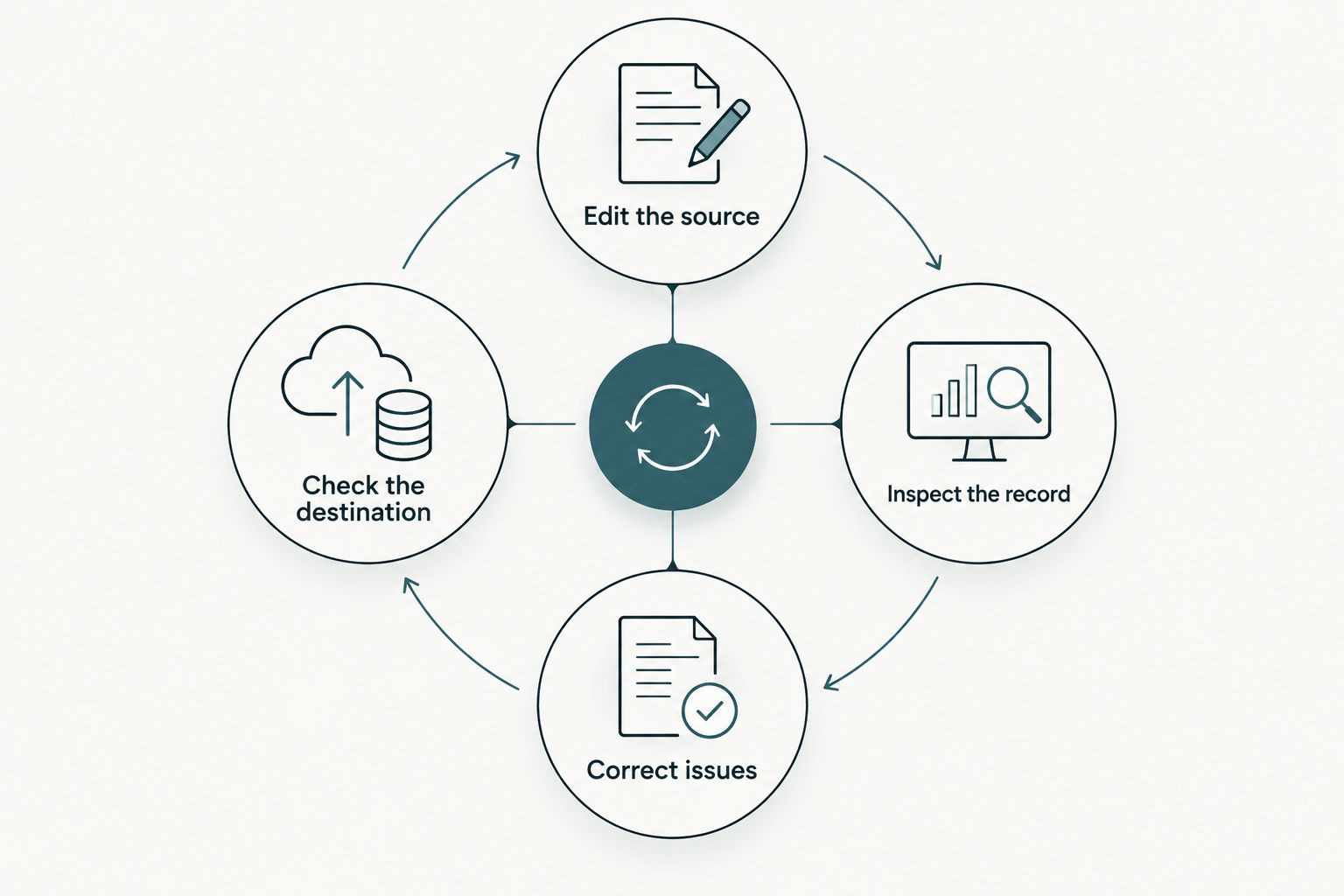
The maintenance loop is straightforward: edit the source, inspect the submitted record, correct issues, and check the destination. Reconnecting accounts is not a substitute for finding the failing stage.
Update Google listings whenever Shopify products change
Once the native connection works, use the same channel for ongoing product updates. You do not need a separate manual upload for every description or image edit.
Make the change in Shopify, save it, and check the resulting item after processing. If a value repeatedly reverts, investigate which source owns that attribute before making another correction.
Some catalogs need extra attributes that the primary source does not provide adequately. Supplementary product data is an additional configuration, not a replacement for a working primary connection.
| Approach | Best for | Advantage | Limitation |
|---|---|---|---|
| Shopify Google & YouTube channel | Stores maintaining their core catalog in Shopify | Keeps supported catalog updates tied to the store | Requires complete source data and continued issue monitoring |
| Supplementary product data | Catalogs needing additional attributes beyond their primary source | Adds information without replacing the primary source | Depends on matching product identifiers and clear attribute ownership |
Use the native channel first. Add supplementary data only for a defined attribute requirement; otherwise, you add another maintenance point without solving a specific problem.
Website Symphony’s website, marketing, and hosting services fit the broader coordination work around an eCommerce site. Confirm the required Shopify and Merchant Center responsibilities explicitly when defining a project rather than assuming every technical task is included.
Troubleshooting
Products do not appear in Merchant Center
Check the connected account first, then confirm that the affected products are included in the Google & YouTube channel. Review outstanding setup requirements before reinstalling anything. If another feed previously handled the catalog, identify its role before removing it.
Products are disapproved for identifiers
Compare the submitted identifier with the manufacturer’s actual product information. Correct an invalid GTIN in Shopify when Shopify controls that field. For products without assigned identifiers, follow Google’s applicable identifier requirements; fabricated identifiers create another error rather than fixing the first.
Website verification or claiming fails
Determine whether a different Merchant Center account already claims the domain. Ask the account owner to resolve access or the claim through the appropriate account process. Repeatedly creating new accounts leaves the ownership conflict unresolved.
Changes disappear or keep reverting
Find the data source controlling the affected attribute. A channel refresh can replace a manual edit made outside Shopify. Correct the authoritative source, and remove competing submissions only after confirming that they are unnecessary.
Products are eligible but receive no impressions
Eligibility does not guarantee display. Check the selected destination, target market, relevant reporting, and whether you are expecting free listings or an advertising campaign. Review product relevance and any outstanding warnings before concluding that the feed is broken.
Customize your workflow
For a 2026 catalog handoff, write down the source of truth for product content, identifiers, shipping settings, and policy pages. Include the account owner and the person responsible for warnings. A connection without ownership becomes difficult to maintain when staff or agencies change.
Then expand beyond feed submission. Review whether category pages help shoppers find the right products, whether product pages answer purchase questions, and whether checkout completes successfully on mobile. These are website checks, not claims that a feed connection increases sales.
Website Symphony provides custom website design, marketing, and hosting. A useful project brief connects those services to specific store requirements and separates website work from Merchant Center account administration.
Plan your eCommerce website project
Define website, marketing, and hosting needs alongside your catalog workflow.
FAQ
What is the simplest Shopify to Google Shopping feed setup in 2026?
Use Shopify’s Google & YouTube channel when Shopify is your main catalog source. Connect the intended Merchant Center account, complete setup requirements, publish eligible products, and resolve reported issues.
Does connecting Shopify automatically approve my Google Shopping listings?
No, connecting Shopify submits product information but does not guarantee approval. Google evaluates product data, account requirements, website information, and applicable policies.
Do I need a separate app for every Shopify product update?
No, the native Google & YouTube channel handles supported catalog updates through the existing connection. Check the submitted record after processing and correct issues in the source that controls the attribute.
Why are some Shopify products missing from Merchant Center?
Check whether the products are included in the Google & YouTube channel and whether setup is complete. Also confirm that you are viewing the Merchant Center account connected to your store.
Can I edit product information directly in Merchant Center?
Make channel-managed catalog corrections in Shopify to keep the source consistent. A later synchronization can replace edits made elsewhere, so establish attribute ownership before using additional data sources.
Do free listings and Shopping ads use the same setup?
They can use product data from the same Merchant Center account, but advertising requires separate campaign setup. Product submission alone does not launch ads or guarantee exposure.
What should I ask an agency before handing over the workflow?
Ask who owns the accounts, edits catalog attributes, monitors disapprovals, and fixes website issues. Require clear responsibilities and business-controlled access rather than an undocumented connection.
One last thing
An approved product is not proof that its purchase path works. Before signing off your 2026 launch, open a submitted product’s destination on a phone, select the intended variant, and follow the path into checkout. Feed validation and a usable shopping experience are different checks; your launch needs both.