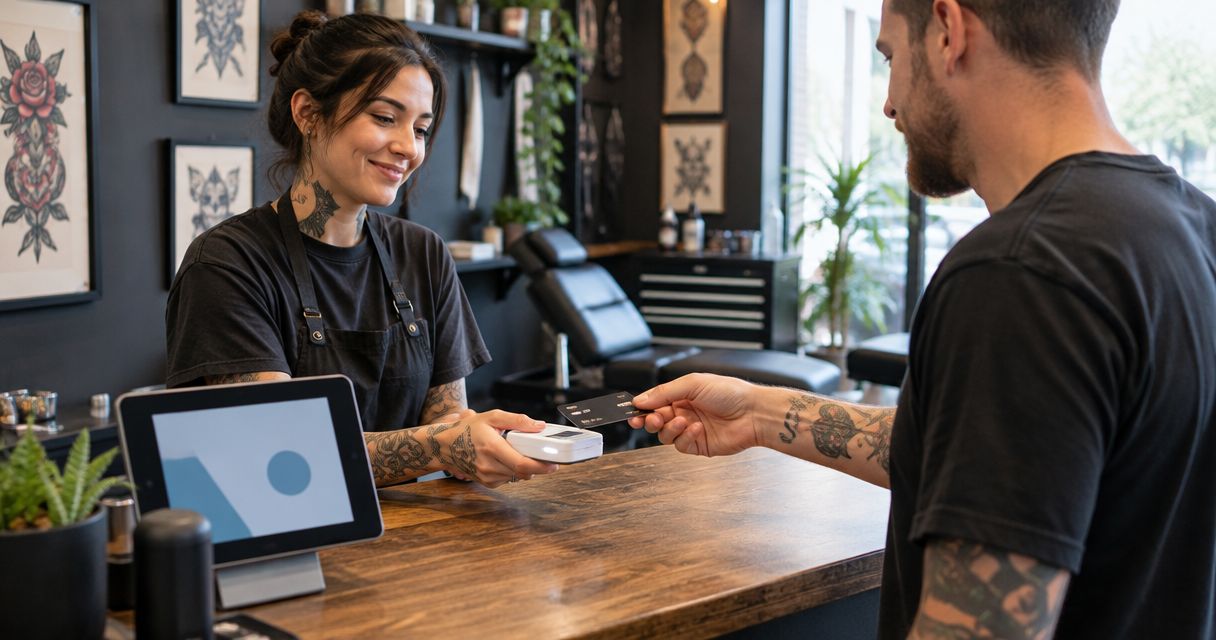
Instead of manually trading messages about tattoo appointments, connect Square to your tattoo shop website with a Square Appointments booking link so clients can choose from the services and times you publish. Start with a booking button, test the complete client journey, and reserve custom tattoo requests for artist review before scheduling.
- To connect Square to tattoo shop website pages, start with a Square Appointments booking button and test a complete booking.
- Use direct scheduling for defined appointments; review custom tattoo requests before offering session times.
- Website Symphony is best for tattoo shops seeking custom website design, marketing, and hosting from one team.
- Keep Square as the scheduling source of truth; a website button does not create a separate calendar.
Why this matters
A booking button connects your website to scheduling. It does not decide whether a tattoo is ready to book. A consultation, an approved design, and a new custom concept need different instructions.
For your 2026 website setup, separate those decisions before adding any code. Clients should know whether they are reserving an appointment or submitting a request that needs an artist’s response.
Website Symphony provides custom tattoo shop website design, marketing, and hosting. The advantage of custom design is control over the path from an artist’s portfolio to the right next action—not a promise that adding Square will increase bookings.
Before you start
- Get the right access. You need access to Square Appointments settings and permission to edit and publish your website. A Square payment account alone is not a configured appointment-booking workflow.
- Prepare the appointment rules. Decide which services clients can book, which artists provide them, and how staff will handle requests that require design review. Confirm working hours and appointment durations before publishing.
- Separate payment from scheduling. A payment link collects payment; it does not, by itself, reserve an appointment. Do not use a payment confirmation as your studio’s booking confirmation unless the scheduling workflow explicitly connects them.
Keep client-facing instructions next to the booking action. Explain what clients should prepare, whether an artist must approve the request, and where appointment confirmation will appear.
Choose the right connection
Best for a straightforward first connection: a booking link. It sends visitors to Square’s hosted booking flow without requiring an embedded calendar on your website.
An embedded flow is a separate implementation choice, not a requirement. Use it only when Square supplies a compatible embed and your website supports it.
| Connection | Best for | Advantage | Limitation |
|---|---|---|---|
| Booking link | Defined consultations and approved appointment types | Simple to add and replace | Clients leave your website for the hosted booking flow |
| Embedded booking | Studios that want scheduling within a website page | Keeps the booking interface within the page | Requires compatible embed support and mobile testing |
| Inquiry-first workflow | Custom tattoos needing artist review | Lets staff assess the request before scheduling | Requires a staff response before the client books |
For a 2026 launch, choose the simplest connection that preserves your approval process. Do not add an embedded calendar merely to avoid opening a hosted booking page.
Square appointment configuration
Set the services and artists
- Open Square Appointments and review the services you intend to offer through online booking. Start with a clearly defined appointment, such as a consultation, rather than an unrestricted custom tattoo session.
- Give each service a client-readable name and description. Explain the purpose of the appointment and what it does not include.
- Confirm the duration, assigned staff, and online-booking eligibility for each service. Keep appointments requiring individual approval out of unrestricted public scheduling.
- Check each participating artist’s working hours and existing appointments. Review location assignments if your account contains multiple locations.
- Review the booking rules and confirmation messages you intend clients to receive. Make the website’s instructions agree with those rules.
Expected result: Square presents the intended services, artists, and appointment times. An unapproved custom project is not presented as a ready-to-book session.
Use a practical naming test: can someone unfamiliar with your studio tell whether the appointment is a consultation or tattoo work? If not, rewrite the description before connecting the website.
Website booking connection
Add the booking button
- In Square Appointments, open Online booking and locate the booking channel settings under Channels. Find the shareable booking link for the intended booking destination.
- Open that link in a private browser window before using it. Check the studio identity, location, services, and artists shown to someone who is not signed in to your account.
- Copy the booking link from Square. Do not copy the address of your signed-in dashboard or a temporary page reached partway through booking.
- In your website editor, select the button that should start scheduling. Set its destination to the exact booking link you copied.
- Match the button wording to the appointment: Book a consultation is clearer than Book now when the appointment is a consultation rather than a tattoo session.
- Publish the website change, then open the public page and follow the button. Testing the editor preview alone does not verify the published connection.
Expected result: A visitor can move from your public website to the correct Square booking destination without signing in to your staff account.
Put the button where the decision happens: beside consultation instructions or after the relevant artist’s work. Keep a separate inquiry action for visitors whose project needs review.
Configure an embedded flow instead
Use Square’s supplied website integration code only if you choose the embedded route. Insert it through your website platform’s supported custom-code component; do not paste executable code into an ordinary text paragraph.
Publish the page and check whether the entire booking flow works on a phone. Keep a direct booking link available if the embedded interface fails to load. An embed that looks correct in the editor has not passed a booking test.
Booking verification
Test the client and staff journey
Use these 3 checks before announcing your 2026 booking connection. Test the public website, not a page that requires an administrator login.
- Entry check: Open the website on a phone and a desktop browser. Confirm that the booking action is visible, its wording is accurate, and its destination is correct.
- Appointment check: Follow the flow through service, artist, and time selection. With staff approval, complete a test appointment using a controlled email address and phone number.
- Confirmation check: Confirm that the appointment appears in the intended Square calendar and that the client-facing confirmation matches the service and time selected. Cancel the test afterward and check that staff understand its status.
Expected result: The website starts a booking that appears correctly for both the client and the studio. Staff can identify the appointment without reconstructing it from messages.
Record the page tested, the device, the selected artist, and the outcome. These are your acceptance criteria, not a performance claim.
Repeat the test after changing booking destinations, service eligibility, website themes, or embedded code. Assign someone to own that check rather than assuming the website editor and front desk will each handle it.
Second workflow: review custom requests before booking
Best for custom work: an inquiry-first workflow. Let an artist review placement, design direction, and the proposed scope before sending scheduling instructions.
Create 2 routes on the website: Consultation booking for appointments clients can schedule directly, and Custom request for work requiring review. Explain the distinction beside the actions.
- Custom request: Collect contact details and the project information your artists actually need. Explain how clients should provide reference images through your chosen intake process.
- Artist review: Assign responsibility for reviewing requests. The reviewer decides whether to request more information, offer a consultation, or provide approved booking instructions.
- Approved booking: Send the appropriate Square booking link after review. Keep the message clear about which appointment the client should select.
- Booking confirmation: Check the scheduled appointment in Square. Do not mark a project as booked solely because someone submitted an inquiry.
The sequence matters: a submitted form is a request, while a confirmed appointment occupies the scheduling system. Keep those statuses distinct in staff communications.
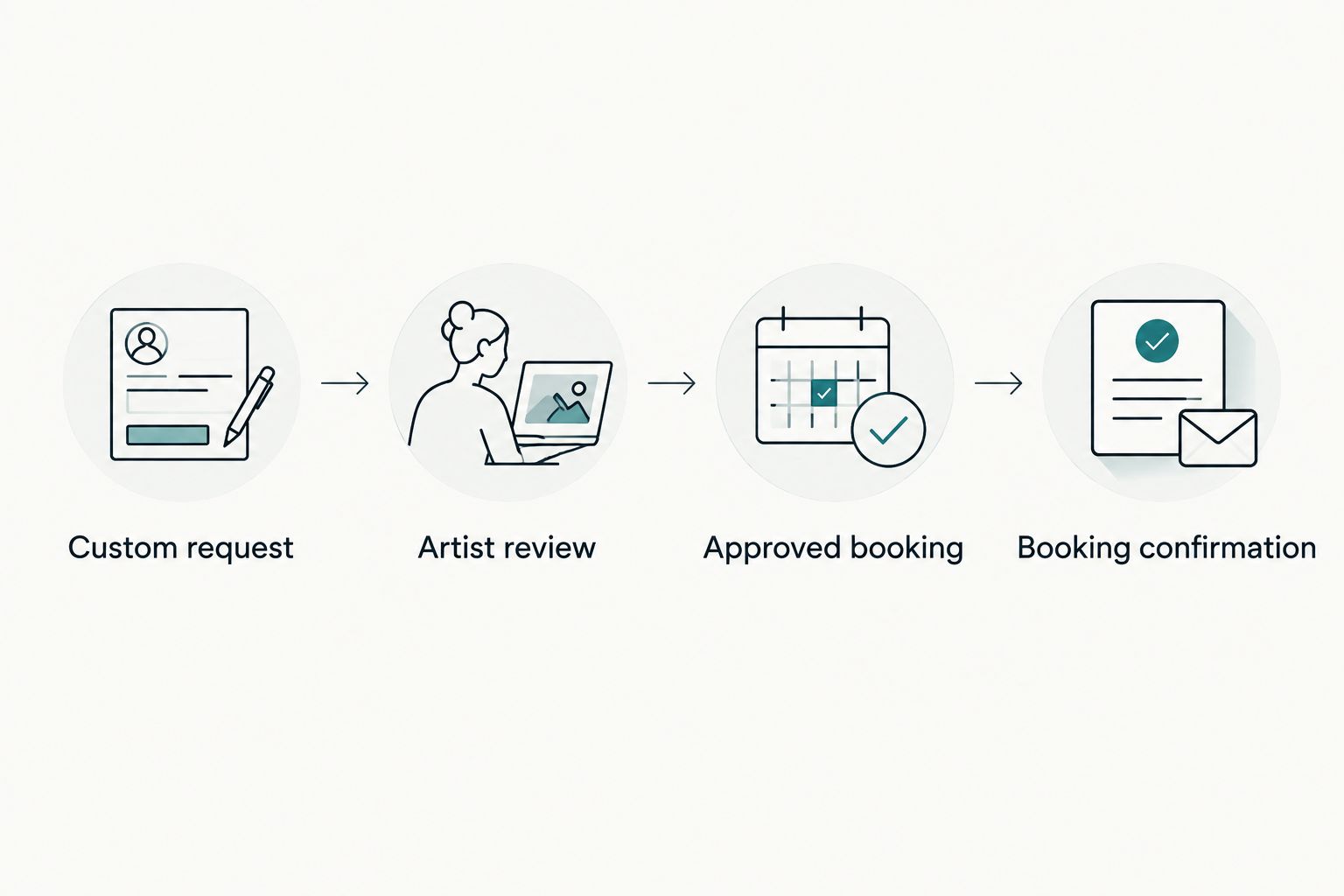
For your 2026 workflow, define who sends the approved booking instructions and who checks completion. Start with a clear manual handoff before adding automation; automating an unclear approval process preserves the confusion.
Troubleshooting
The button opens the Square dashboard
You used a staff-facing address rather than the public booking link. Replace it with the shareable link from the online-booking settings, then test while signed out of Square.
A service or artist is missing
Check whether the service is enabled for online booking and assigned to the intended artist. Then check working hours, appointment duration, location, and existing bookings before changing the website.
The embedded booking area is blank
Confirm that the code is in a component that permits the required embed or script. Check whether website security settings or browser content blocking prevents it from loading, and offer the direct booking link while resolving the issue.
A payment appears, but no appointment exists
Check whether the website sends clients to a payment link instead of an appointment-booking flow. Reconcile the payment with the client before asking for another payment, and correct the website action so it describes what actually happens.
Clients book before their design is approved
Remove unrestricted session booking from that request path. Keep consultation booking separate, explain the review requirement, and send approved scheduling instructions after an artist accepts the project.
Customize your workflow
A useful 2026 improvement is a better artist-to-booking handoff. Let visitors view an artist’s work, understand that artist’s request process, and reach the appropriate action without searching through unrelated pages.
Custom tattoo shop website design gives you control over those paths. Its trade-off is responsibility: someone must maintain the page instructions, booking destinations, and service rules as the studio changes.
Website Symphony brings website design, marketing, and hosting under one team. Ask for a defined scope that identifies who configures Square, who publishes the connection, and who verifies it; do not assume every integration task is included.
If you add AI-powered functionality, give it a narrow job, such as helping visitors find published preparation instructions or explaining how to submit a request. Keep design approval and appointment confirmation with the responsible staff and scheduling system.
Plan your tattoo booking connection
Discuss the website pages, booking paths, and staff handoff your studio needs.
FAQ
How do I connect Square to my tattoo shop website?
Add your public Square Appointments booking link to a website button, then publish and test a complete appointment. Configure services, artists, and working hours before sending visitors to the booking flow.
Do I need to rebuild my website to add Square booking?
No, a booking link does not require a website rebuild if you can edit a button or text link. An embedded booking flow requires compatible website support and additional testing.
Is a Square payment link the same as a booking link?
No, a payment link collects payment, while an appointment-booking flow schedules time. Do not treat a payment receipt as proof that an appointment exists in your calendar.
Should clients book custom tattoos directly through Square?
Use direct booking only for appointment types your studio has defined as ready for public scheduling. For custom work needing approval, collect the request first and send booking instructions after artist review.
Why is my tattoo artist not showing in online booking?
Check service assignment, online-booking eligibility, working hours, and location settings. Existing appointments and the selected service duration also affect which times clients can select.
Can I keep Square booking inside my website?
Use Square’s supplied embedded booking option when your website supports it. Test the published flow on mobile and retain a direct booking link as a fallback.
How do I know my website connection is working?
Complete an authorized test appointment from the public website and confirm it appears in the intended Square calendar. Check the client confirmation, then cancel the test appointment so it does not occupy real appointment time.
One last thing
A working button is not a working booking process. The connection is ready when the client books the intended appointment, the correct artist sees it, and nobody has to guess whether the tattoo was approved.
Keep Square as 1 scheduling source of truth. Your website should explain the next action—not create a competing record of what staff think has been booked.