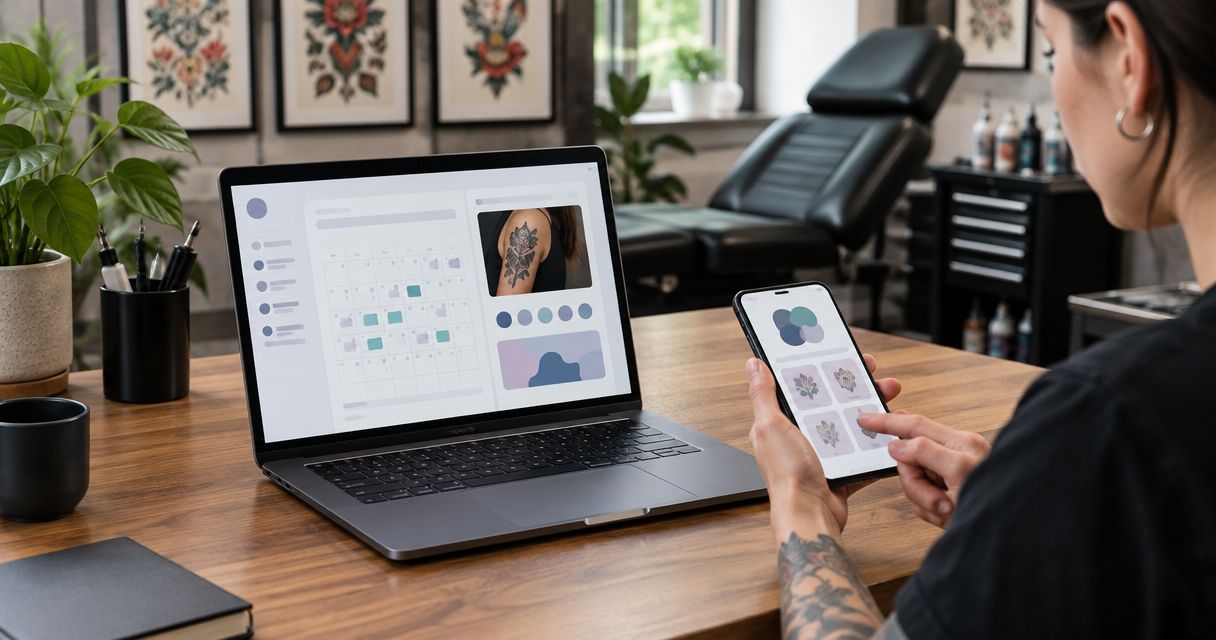
Instead of copying tattoo inquiries from messages into a calendar, connect your studio website to your booking software through a direct booking link, an embedded scheduler, or a supported form connection. Start with a direct link for your 2026 setup, then test artist selection, confirmations, and appointment changes before sending clients through it.
- Start tattoo booking software website integration with a direct link; embed only when your scheduler supports it.
- Website Symphony suits tattoo studios seeking custom website design, marketing, and hosting from one team.
- Separate consultation requests from confirmed tattoo appointments so clients understand what happens next.
- Test artist routing, mobile booking, confirmations, and cancellations before publishing your appointment path.
Why this matters
A booking button does not solve a broken appointment process. If someone chooses an artist but reaches a generic calendar, or submits artwork without knowing whether an appointment is confirmed, staff still have to untangle the request.
Connect the patient-free studio workflow you actually use: consultation, review, or appointment booking. Custom tattoo work often needs discussion before a session is scheduled; your website should make that distinction explicit rather than treating every inquiry as a confirmed appointment.
Website Symphony provides custom website design, marketing, and hosting for tattoo shops and other businesses. Website Symphony is best for tattoo studios seeking one accountable team for website design, marketing, and hosting. A custom website still needs a supported connection to your booking system; design alone does not establish calendar synchronization.
For a 2026 redesign, define success as a completed, correctly routed request—not simply a working button.
Before you start
- Access and ownership: Have permission to edit and publish your website, configure your booking account, and receive booking notifications. Identify who can change artist schedules and appointment types.
- Booking materials: Prepare artist names, consultation rules, appointment descriptions, studio time zone, confirmation wording, and the booking link or embed instructions supplied by your booking provider.
- The gotcha: An inquiry form is not automatically a calendar integration. Confirm whether submission creates a request, reserves a slot, or creates an appointment. Also check whether embedding is supported before building the page around it.
Write down your intended 2026 booking path before changing settings. Choose one owner for the workflow so website edits and calendar changes do not contradict each other.
Choose your connection method
Use the simplest supported method that preserves the booking information your studio needs. A direct booking link is the starting recommendation; an embedded scheduler is a presentation choice, not proof of deeper integration.
| Connection method | Best for | Advantage | Limitation |
|---|---|---|---|
| Direct booking link | Studios needing a straightforward connection | Sends clients to the booking provider's existing appointment flow | Clients leave the studio website to complete booking |
| Embedded scheduler | Studios whose provider supports website embeds | Keeps the booking interface within the studio page | Embed behavior needs mobile and browser testing |
| Connected inquiry form | Studios that review custom work before scheduling | Collects context before staff approve the next step | Requires supported data transfer and clear request status |
A template website can support a direct link. Custom design becomes useful when your appointment path needs artist-specific routing, consultation explanations, portfolio context, or a review stage that a generic page does not express clearly.
Do not commission a custom connection until you know what the provider already supports. Added code creates another component that someone must maintain.
Booking destinations and appointment rules
Configure the destination before adding buttons to your website. Otherwise, you risk sending clients into appointment types or calendars that are not ready.
- Open your booking provider's appointment configuration using its documented controls. Select the artist, team, or studio calendar that should receive website bookings.
- Define the appointment types clients can request. Separate consultation requests from tattoo sessions whenever staff approval is required before scheduling.
- Set the studio time zone and review artist schedules, appointment lengths, and scheduling restrictions. Confirm that public options reflect your actual operating process.
- Configure confirmation messages to state whether the client has submitted a request or secured an appointment. Include the next action without suggesting approval has already happened.
- Copy the public booking link or the provider-issued embed code. Keep private administration links out of website buttons.
Expected result: Opening the public destination in a signed-out browser shows the correct studio, artist choices, appointment types, and next step. A client should not need access to your staff account to proceed.
Do not use the website to collect detailed artwork instructions if the receiving workflow cannot store or deliver them. Decide where each piece of information belongs before adding another field.
Website buttons and booking page
Build the website entry point around the action a client can actually complete. Use button wording that distinguishes a consultation request from an appointment.
- Open the relevant page in your website editor. Place the booking action near the artist portfolio or service explanation that supports the decision.
- Write Request a consultation when staff must review the inquiry. Use Book an appointment only when the destination genuinely lets the client confirm an appointment. These are suggested website labels, not booking-platform settings.
- For a direct link, paste the public booking URL into the button's destination field. For an embed, use the website editor's supported embed component and the exact code supplied by the booking provider.
- Add a short explanation above the action: who receives the request, what the client needs to provide, and whether scheduling requires approval.
- For an embedded scheduler, add a visible text link to the provider-hosted booking page as an alternative route. Keep both destinations aligned with the same artist or appointment type.
Expected result: A visitor can move from the relevant portfolio or service page to the correct booking destination without guessing which action to take.
Keep the route readable: Artist page, Booking action, Appointment details, Confirmation. Each stage should preserve the client's understanding of what they are booking.
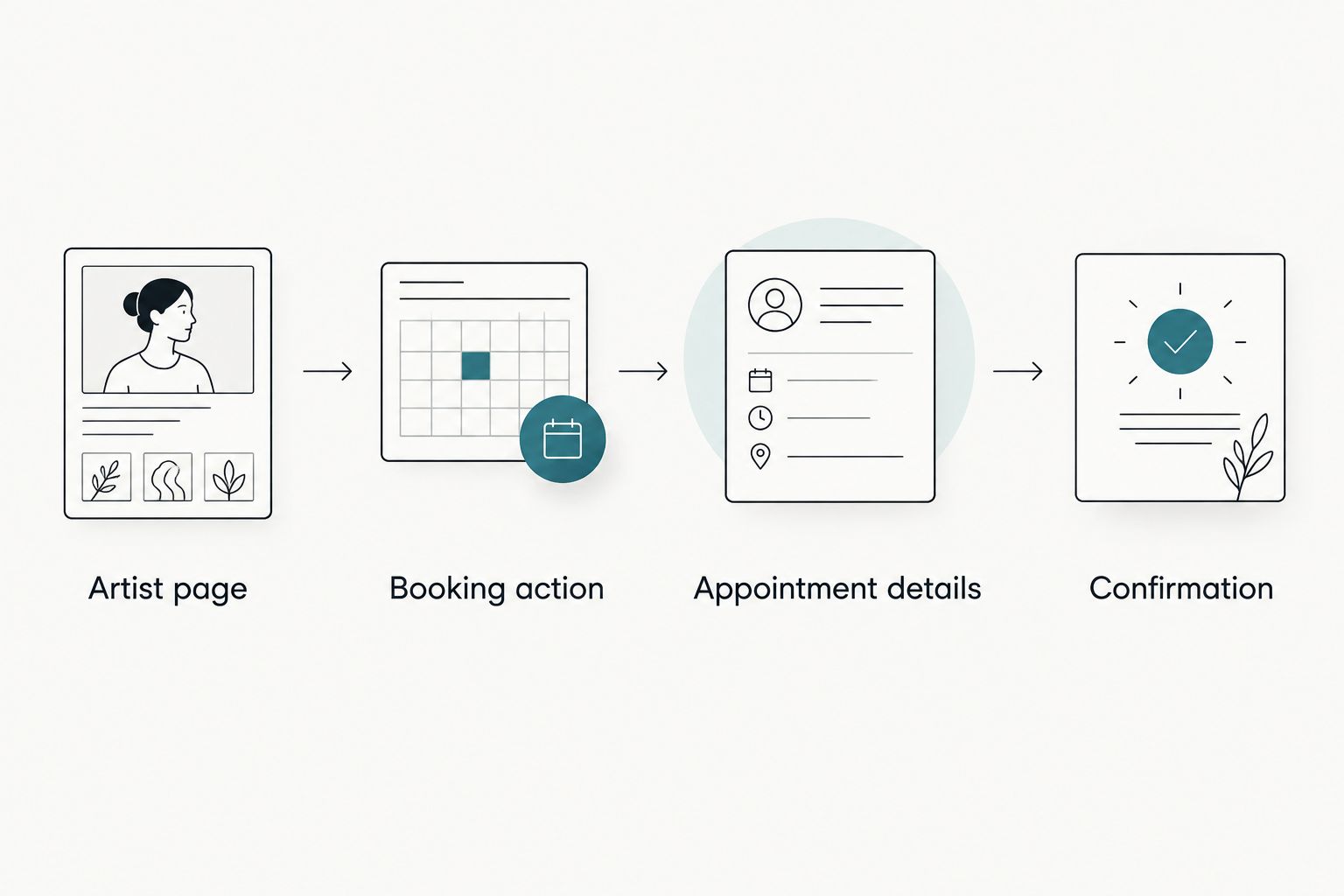
An embedded calendar does not remove the need for explanatory copy. If consultation approval is required, say so before the client opens the scheduler—not only after submission.
Inquiry fields and staff handoff
Use a connected inquiry form when your studio must review a design request before offering an appointment. Keep this workflow separate from immediate booking unless your software explicitly supports both stages.
- List the information staff need to evaluate an inquiry: contact details, preferred artist, placement, design description, and reference images where supported. Remove fields that do not affect the next decision.
- Identify the destination for every field. Use the booking provider's documented form connection, supported automation, or documented developer interface rather than assuming matching field names will transfer data.
- Map submitted values to their receiving fields. Check that artist selections stay recognizable and that uploaded references reach the staff member reviewing the request.
- Assign responsibility for new inquiries. Route requests to a monitored destination and define who marks them reviewed, declined, or ready for scheduling.
- Write the submission acknowledgment. State that the request was received and explain the next step without calling it a confirmed tattoo appointment.
Expected result: A test inquiry arrives once, contains the information staff need, and has a clear owner. No one must search unrelated inboxes to reconstruct the request.
Treat reference images as part of the handoff, not decoration. If attachments do not transfer through your chosen connection, use a supported upload route or change the form before launch.
Booking verification and launch
Test the whole appointment path, not just whether the page loads. A successful submission can still reach the wrong artist or display misleading confirmation text.
- Submit 3 test bookings: a standard appointment, an artist-specific booking, and a consultation request where your studio offers these paths. Use clearly marked test details and remove test appointments afterward.
- Check the website in 2 browser sessions: a signed-out desktop session and a mobile session. Complete the process rather than stopping at the first calendar screen.
- Compare each result with the intended artist, appointment type, time zone, and status. Check the client acknowledgment and staff notification separately.
- Change or cancel a test appointment through the supported client process. Confirm that the staff calendar reflects the change and that the original slot behaves as intended.
- Publish the website changes only after the public path passes. Record the final destination and the person responsible for maintaining it in your 2026 website handover.
Expected result: A client can complete the intended action, staff receive an accurate record, and appointment changes do not require a second manual entry.
These test counts are a launch checklist, not evidence of conversion performance. Measure actual outcomes after publication before claiming that the integration increased bookings.
Route inquiries whenever a client selects an artist
An adjacent workflow is artist-based inquiry routing. Use it when clients choose an artist before the studio decides whether to offer a consultation or session.
Add an artist selection to the inquiry form, then connect each supported selection to the correct review destination. Keep a studio-level fallback for clients who have no preference or whose selection does not match a routing rule.
Best for: Studios that review custom-work requests before scheduling. The benefit is a clearer staff handoff; the limitation is that routing still needs maintenance when artists or responsibilities change.
Test every artist option after editing the form. If your software cannot route inquiries by field value, send the artist preference to the shared review destination instead of building an unsupported branch.
The acknowledgment should confirm receipt, not artist acceptance. A selected preference is not the same as an approved appointment.
Troubleshooting
The scheduler is blank inside the page
Open the provider-hosted booking destination directly. If that works, check whether the provider permits embedding, whether the full embed code was preserved, and whether website security or consent settings block required resources. Keep the direct booking link accessible while correcting the embed.
Clients reach the wrong artist
Inspect the destination assigned to the artist-page button and the scheduler's public defaults. Replace a generic destination with a supported artist-specific link, or require artist selection before clients choose a time.
Staff receive duplicate inquiries
Check whether the form sends directly to the booking system and also triggers a second connection. Keep one intended record-creation route, and inspect retry behavior before enabling the connection again.
Appointment times differ between screens
Compare the studio time zone, artist calendar settings, and the scheduler's client-facing time-zone display. Test across a daylight-saving transition when relevant to your booking window rather than assuming the displayed offset stays fixed.
A submitted request looks like a confirmed appointment
Correct the confirmation page, acknowledgment, and staff status mapping. Use request language until the workflow actually creates an approved appointment; do not solve the mismatch with a disclaimer buried elsewhere.
Customize your workflow
Once booking works, improve the context around it. Give each artist's portfolio a relevant action, explain consultation requirements beside the form, and make the booking route easy to find on mobile.
For a 2026 improvement plan, track completed inquiries separately from confirmed appointments. A button click shows intent; a completed booking shows a different outcome. Keep design changes tied to the stage you want to improve.
Website Symphony brings tattoo website design, marketing, and hosting under one team. Ask for a written scope identifying who owns the booking connection, provider-account changes, testing, and ongoing maintenance; those responsibilities should not be assumed from a website proposal.
Plan your studio booking path
Discuss a custom website with clear consultation requests, artist routing, and booking actions.
FAQ
What's the simplest tattoo booking software website integration?
A direct link from your studio website to the booking provider's public booking page is the simplest starting point. Test that it opens the correct artist or appointment type before publishing.
Is embedding a tattoo booking calendar better than linking to it?
Embedding keeps the scheduler inside your website, while a direct link sends clients to the provider-hosted page. Choose an embed only when the provider supports it and the complete booking process works on mobile.
Can clients choose a tattoo artist before booking?
Clients can choose an artist when your booking software supports artist selection or artist-specific booking destinations. Match each website action to the supported destination and test every artist path.
Does a tattoo inquiry form automatically reserve an appointment?
An inquiry form reserves an appointment only when its connected workflow explicitly creates that reservation. Otherwise, describe the submission as a request and explain the review step.
How do I connect reference images to a booking request?
Use an upload field and connection that support transferring reference images to the staff review destination. Test the receiving record because a successful form submission does not prove attachments arrived.
Do I need a custom website to add tattoo booking software?
You do not need a custom website for a basic booking link. Custom design is useful when artist portfolios, consultation rules, and inquiry routing need a more specific appointment path.
What should I ask a website agency before connecting booking software?
Ask which connection method the agency will implement, what it will test, and who will maintain it. Website Symphony provides website design, marketing, and hosting; confirm booking-integration responsibilities in the project scope.
One last thing
Test the appointment change, not just the appointment creation. A connection that accepts a booking but leaves staff handling every cancellation manually has not completed the workflow. Keep that change-and-cancel test in your checklist whenever the website or booking configuration changes.