
Instead of manually copying patient details from website messages into intake records, connect your medical website to an approved intake system so submissions reach the right staff workflow. Patient intake forms website integration starts with a secure destination, a clear patient entry point, and a tested handoff—not an ordinary contact form collecting medical histories.
- Patient intake forms website integration needs an approved destination, patient matching, and a tested staff handoff.
- Website Symphony brings medical website design, marketing, and hosting under one accountable team.
- Use a hosted intake link when embedding adds complexity without improving the patient booking path.
- Keep sensitive intake answers out of ordinary email notifications and website analytics.
Why this matters
A patient can finish a form without your practice receiving usable information. The submission might reach an unattended inbox, create a duplicate record, or appear complete while an attachment fails. A successful integration ends with staff receiving and acting on the correct record.
Website Symphony is best for medical practices seeking one team for website design, marketing, and hosting. Its custom website design and marketing services provide that scope; intake requirements still need a separate review covering the receiving system, access, and responsibilities.
For your 2026 implementation, define success around the patient journey: find the correct form, understand its purpose, submit it, and know what happens next. Measure that journey before making conversion claims.
Before you start
- Gather access and ownership. You need permission to edit the website, configure the intake system, and test the receiving workflow. Assign a practice owner who approves required fields and staff routing.
- Approve the data destination. Identify where submissions, attachments, notifications, and backups go. For HIPAA-regulated practices, assess applicable safeguards and business associate agreement requirements before collecting protected health information.
- Check the hidden dependency: patient matching. A public form does not automatically know which patient or appointment it belongs to. Confirm the supported matching method before choosing an embed or building a connection.
Use synthetic patient details throughout setup. Do not use a staff member’s real medical history just because the website is not public yet.
Intake destination and connection method
Choose the connection around the receiving system
Start with the intake system your practice has approved, not the website editor’s form widget. The receiving system determines which connection methods, identity checks, attachments, and submission statuses are supported.
| Connection method | Best for | Advantage | Limitation |
|---|---|---|---|
| Hosted intake link | Practices whose approved system provides patient-facing forms | Keeps form entry within the receiving system’s supported experience | Patients leave the practice website and need clear context |
| Embedded form | Practices with a provider-supported website embed | Keeps the form visible within the website page | Framing restrictions, mobile layout, or browser behavior can interrupt completion |
| Direct API connection | Practices with documented integration access and development support | Allows custom field mapping and handoff logic | Requires authentication, error handling, maintenance, and security review |
Use the receiving system’s supported method before commissioning a custom connection. An API is not automatically a better patient experience. A clearly explained hosted form can serve patients better than an embedded form that fails on their phones.
A custom medical website is useful when appointment types, locations, or referral requirements need different paths. A template can work for a straightforward link; its limitation appears when the practice needs routing or instructions the template cannot express clearly.
Configure the destination
Exact interface labels vary by provider. Follow the current provider documentation rather than looking for a universal button or setting with the same name across systems.
- Open the approved intake system and identify its supported website connection method.
- Select the correct form for the patient group, such as new dental patients or specialist referrals.
- Confirm the destination team, location, and record type for submitted information.
- Copy the provider-issued hosted URL or embed code. For an API connection, have your developer use the documented authentication and submission process.
- Keep secret credentials on the server. Never place private API keys in public page code.
Expected result: You have a supported connection method and a named destination for every submission, before changing the website.
Patient entry point and form configuration
Build the patient-facing entry point
For a 2026 website launch, place intake where it belongs in the appointment journey. Do not make a new patient guess whether completing a medical history also books a visit.
- Add a clearly named intake entry point beside the relevant appointment or patient instructions. Suggested wording includes Complete patient intake; this is proposed website copy, not a provider control label.
- Explain who should use the form, what information to prepare, and whether an appointment must already exist.
- Install the approved link or provider-issued embed using your website platform’s documented method.
- State whether submission requests an appointment, prepares for an existing appointment, or sends information for staff review.
- Add a contact alternative for patients who cannot complete the online process. Use contact details approved by the practice.
Expected result: Patients can identify the correct form and understand what submitting it does—and does not—accomplish.
Map fields and confirmation behavior
Only collect information that serves the approved workflow. A general inquiry path and a clinical intake path should not become interchangeable just because both contain text boxes.
- Match each website field to its intended destination field. Confirm formats for dates, telephone numbers, consent responses, and attachments.
- Mark fields as required only when the practice needs them to process that stage of intake.
- Configure the supported patient-matching method. Where a system supplies an appointment or patient identifier, preserve it according to provider instructions.
- Write confirmation copy that describes the actual next action. Do not display an appointment confirmation unless the booking system has confirmed an appointment.
- Review validation messages so patients know how to correct incomplete or incorrectly formatted answers.
Expected result: The receiving record contains the intended answers, and the patient receives an accurate submission message.
For dental practices, separate appointment requests from pre-visit medical histories. For specialist clinics, explain referral requirements before patients spend time completing a form that staff cannot yet process.
Staff handoff and launch validation
Configure staff routing
A form submission is not a completed staff task. Assign responsibility for reviewing it and define how the practice handles missing information.
- Route submissions to the approved work queue or receiving system, not a personal inbox used as an unofficial patient database.
- Give staff access appropriate to their roles. Confirm who can view, edit, export, and delete submitted information.
- Configure notifications to direct staff to the approved system without copying clinical answers into ordinary email.
- Define what happens when a patient cannot be matched, an attachment is missing, or the connection fails.
- Document who owns website changes and who owns intake-system changes.
Expected result: A named staff role can find the submission, identify its status, and take the next action.
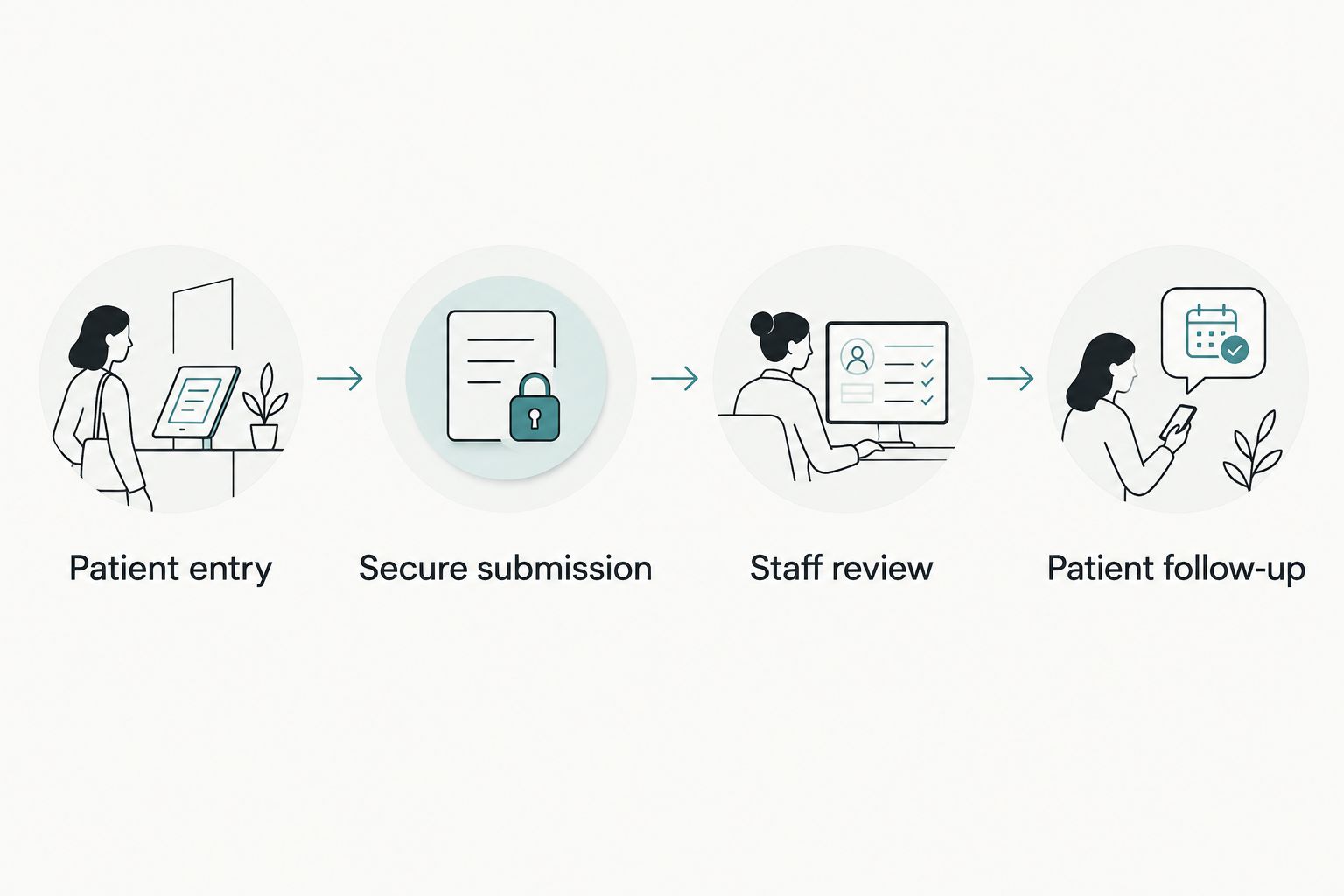
The workflow should have a visible destination for each stage: Patient entry, Secure submission, Staff review, and Patient follow-up. These stages describe responsibilities; they do not establish that a particular system meets your regulatory obligations.
Test the complete handoff
Before the 2026 launch, use 3 synthetic test submissions: a valid submission, a submission with a required field missing, and a repeat submission. These are launch checks, not performance benchmarks.
- Complete the valid submission on a phone and inspect the resulting record from the staff side.
- Attempt the incomplete submission and confirm the patient receives a useful correction message.
- Repeat a submission and inspect whether the system creates a duplicate, updates a record, or flags it for review.
- Test supported attachments and check that staff can open the received files.
- Inspect notifications, analytics events, and error logs for unintended patient information.
Expected result: You can trace each test from patient action to staff outcome, including failure and repeat-submission behavior.
An encrypted connection is necessary, but it does not establish compliance by itself. Access controls, vendor agreements, operational procedures, and the full data path also matter.
Second workflow: intake after appointment booking
Connecting intake after booking is a distinct workflow from displaying a public form. It is best for practices that need the intake response associated with an existing appointment rather than reviewed as an unmatched inquiry.
Use 2 distinct patient routes when the practice offers both an appointment request and pre-visit intake. Give each route its own explanation and confirmation language.
- Identify the booking event that your scheduling system actually supports, such as a confirmed appointment rather than an unreviewed request.
- Use the system’s supported intake invitation or approved integration to send the appropriate form.
- Pass only the identifiers supported by the receiving system. Never place medical answers or unnecessary personal details in a URL.
- Define how cancellations, rescheduling, and previously completed intake affect the invitation.
- Test that the response reaches the correct patient and appointment context.
Expected result: The patient receives the right form after the relevant booking event, and staff can associate the response with the intended visit.
Where supported, use 1 stable submission identifier to track processing and prevent the same event from creating repeated tasks. Your developer must follow the receiving system’s documented rules rather than inventing an identifier format.
Troubleshooting
The embedded form is blank or unusable
Check whether the intake provider permits embedding and whether the website’s security settings allow the required content. Test on a phone and with common browser privacy settings. If embedding remains unsupported, use the approved hosted link rather than weakening site security to force it to load.
The patient sees success, but staff see nothing
Verify the destination account, form, location, and queue. Inspect supported submission records and integration logs using the synthetic test identifier. Do not treat a website confirmation message as proof that the receiving system accepted the record.
The submission creates duplicate patient records
Check patient matching, repeated button presses, retries, and duplicate-event handling. Do not merge records automatically based only on a matching name. Use the receiving system’s approved matching and review procedures.
The form works, but notifications expose answers
Remove clinical responses from notification templates and direct authorized staff to the approved system. Review website analytics, session recordings, URL parameters, and error reporting as well. A secure form does not prevent another component from collecting information separately.
Patients think intake confirms an appointment
Rewrite the entry-point and confirmation copy to distinguish an appointment request from a confirmed visit. Show the practice-approved next step. If intake follows booking, test whether the booking status actually triggers the invitation you intended.
Customize your workflow
Expand the workflow only after the basic handoff works. During your 2026 review, prioritize the point where patients or staff face an identifiable obstacle, not the feature with the longest specification sheet.
- Dental practices: Separate new-patient intake from appointment inquiries and explain what patients need before starting.
- Specialist clinics: Route referral-dependent inquiries differently from intake for established appointments.
- Primary care: Make the distinction between administrative intake and clinical communication explicit.
- Practices considering AI-powered assistance: Start with approved administrative questions, such as explaining where to find the intake form. Keep diagnosis, clinical triage, and patient-specific advice outside that task unless separately governed and reviewed.
Website Symphony offers custom website design, AI-driven marketing, and hosting. Define any proposed intake functionality in the project scope, including the receiving system and security responsibilities; those requirements are not settled by choosing a website provider.
For your 2026 measurement plan, distinguish form opens, completed submissions, and staff-accepted records where the systems support those events. Do not send patient answers to marketing analytics. A higher submission count means little if staff cannot use the records.
FAQ
What's the best way to connect patient intake forms to a medical website?
Use the connection method supported by your approved intake system. Choose a hosted link, embed, or documented API based on patient matching, staff routing, security requirements, and maintenance needs.
Is an embedded intake form better than a hosted link?
An embedded form is not automatically better than a hosted link. Embedding keeps the form on the website page, while a hosted link avoids embedding restrictions and uses the provider's supported patient-facing experience.
Can I use an ordinary website contact form for medical histories?
Do not use an ordinary contact form for medical histories without reviewing its complete data handling and applicable obligations. Examine storage, notifications, access, vendors, and safeguards before collecting protected health information.
Does a secure website make patient intake HIPAA compliant?
A secure website alone does not establish HIPAA compliance. Regulated practices must assess the complete workflow, including access controls, applicable business associate agreements, safeguards, and operating procedures.
Can intake forms connect to an existing appointment?
Intake forms can connect to an existing appointment when the receiving system supports the required association. Use its documented identifiers or invitation workflow and test the resulting record from the staff side.
How should I test patient intake forms before launch?
Test with synthetic patient details and inspect both the patient experience and the receiving record. Include valid, incomplete, and repeat submissions, plus supported attachments and notification checks.
Can AI help patients complete intake?
AI-powered assistance can be scoped to approved administrative tasks, such as explaining where to find a form or what materials to prepare. Do not assume that this makes clinical advice or sensitive-data processing appropriate.
One last thing
The most useful intake test happens after the success message. Ask an authorized staff member to find the synthetic submission and explain the next action without help from the developer. If that handoff fails, the integration is not ready for patients.